Adding a New Analysis
Adding a New Analysis
Sales performance can be tracked against a sales person or department using the sales analysis codes.
To add a new Sales Analysis:
-
Select Customers in the Folders list (left of screen) and the second level menu appears underneath.
-
Select Sales Analysis, and a list of existing sales analysis categories (if any) appears in the main viewing area (right of screen).
-
Select New in the menu bar and an Add New Sales Analysis screen appears:
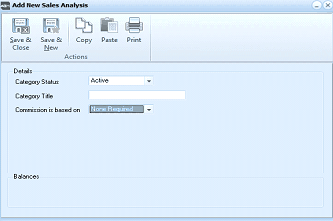
The "Add New Sales Analysis" dialog window in ABM. The toolbar at the top includes Save & Close, Save & New, Copy, Paste, and Print buttons under an "Actions" section. Below is a "Details" section with fields for: Category Status (set to "Active" via a dropdown), Category Title (text field), and Commission is based on (dropdown set to "None Required"). At the bottom is a "Balances" section area. The window has a standard Windows application frame.
New Sales Analysis
Details
-
Category Title: Type the full category title as you want to see it on reports.
-
Commission is based on: If the sales analysis categories refer to salespeople, agents, then select the calculation method. Select from the drop-down list whether the commission is based on the sale value, cost value or gross profit of the product/service.
-
And is paid when: Select from the drop-down list whether the commission is to be paid (to salesperson, agent, and so on) when the sale is invoiced, or when the invoice is paid.
When you select the calculation method, for example, 'Commission is based on Sales Value and is paid when the sale is invoiced', the Commission Calculation fields will populate according to 'Sales Value' (see below). This also applies to Cost Value and Gross Profit.
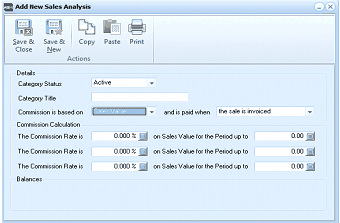
The "Add New Sales Analysis" dialog with commission fields visible. The Details section shows Category Status set to "Active", a Category Title field, and Commission is based on a dropdown (set to "Sales Value") with "and is paid when" set to "the sale is invoiced". Below is the "Commission Calculation" section with three rows, each containing: "The Commission Rate is" (showing 0.000%), "on Sales Value for the Period up to" (showing 0.00). This allows up to three tiers of commission rates. The "Balances" section is visible at the bottom.
New Sales Analysis, where commission is based on 'Sales Value'.
Commission Calculation You can calculate up to three rates of commission for your salesperson, agent, and so on by entering the following:
-
The Commission Rate is: Enter the commission rate that applies to the Sales Value/Cost Value/Gross Profit. Alternatively, press F3 or click the calculator button to calculate the commission rate.
-
On Sales Value/Cost Value/Gross Profit for the Period up to: Enter the maximum value at which the commission rate in the field to the left applies. Alternatively, press F3 or click the calculator button to calculate the value.
Example: The Commission Rate is 5.000% on Sales Value for the Period up to 10,000.00.
Balances The Balances grid displays the accumulated commission of the salesperson, agent, and so on, against the Sales Value, Cost Value and Gross Profit, based on 'This Period to date', 'Last Period' and 'This Year to date'.
Save Settings When you have entered the relevant sales analysis details, select either:
Save and Close: This will save the sales analysis information and bring you back to the main menu. or: Save and New: This will save the information and open a new 'Add New Sales Analysis' screen.