Customer Accounts - Transactions
Customer Accounts - Transactions
All information on all transactions is shown here, and can be sorted by date, reference numbers, description, and so on, by clicking the appropriate header.
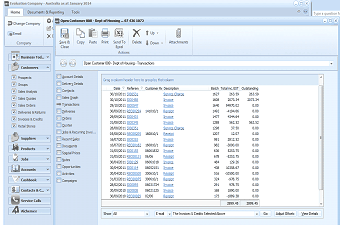
The ABM application showing a customer account Transactions tab within the main window. The left panel shows a folder tree with sections like Transactions, Products, Contacts, and more. The main area displays a transaction grid with columns for Date, Reference, Customer Ref, Description, Batch, Balance inc GST, and Outstanding. Multiple transaction rows are listed showing invoices, payments, and other entries with dates and monetary amounts. At the bottom is a "Show" dropdown for filtering (set to "All"), output options for Email, and buttons including "Adjust Offsets" and "View Details".
By selecting the appropriate option from the drop down list (show) , the information can be configured to show either all the transactions or only those transactions still outstanding.
Any given transaction can be examined in more detail by selecting 'View Details'. The 'View Transaction Details' screen that appears also gives the customer and delivery details and allows you to export the transaction to Excel for further analysis, add a new note against the transaction, and preview print or email the transaction. You can search for a product by selecting the "Find" button and enter either the code or description of the line item you are looking for.
Printing/Emailing/Faxing or Displaying Customer Statements. By selecting the output option from the drop down list you can select the method for sending a statement direct from the transaction screen. When you have made your selection select GO to print/email/fax or display the statement. Note: this will print the statement as at the end of the current reporting period.
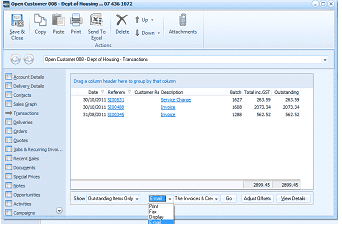
The customer account Transactions tab showing a filtered view with "Outstanding Items Only" selected. The left sidebar shows navigation tabs. The main transaction grid displays columns for Date, Reference, Customer Ref, Description, Batch, Total inc GST, and Outstanding. A few outstanding transactions are listed. At the bottom, the "Show" dropdown is set to "Outstanding Items Only", and there are output options including a dropdown showing "Print", "Fax", and "Display" options. Buttons for "This Invoice & Credits", "Go", "Adjust Offsets", and "View Details" are visible at the bottom.
Printing/Emailing/Faxing or Displaying a Range of Invoices: You can select a number of invoices or credit notes by selecting the first invoice/credit and holding the Shift Key and selecting the remaining invoice required. When you have made you selection and selected the method of output select GO to print/email/fax or display the invoices/credits selected.
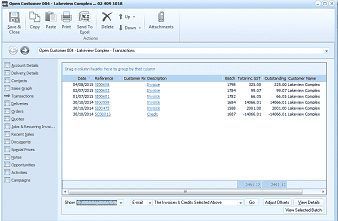
The customer account Transactions tab showing multiple selected transactions. The left sidebar shows navigation tabs. The transaction grid displays columns for Date, Reference, Customer Ref, Description, Batch, Total inc GST, Outstanding, and Customer Name. Several rows are highlighted/selected (shown in blue), indicating multiple invoices and credits have been selected for batch printing or emailing. At the bottom are options for output method selection, "This Invoices & Credits Selected Above" label, and buttons for "Go", "Adjust Offsets", and "View Details".
A column chooser is available so that you can select the columns you wish to see on the transaction list.
Adjust Offsets: You can select this option to clear or change transactions that have been previously offset or offset new transactions against an unallocated receipt.
Track Order: Shows all Deliveries, Returns, Invoices, and Credits relating to this transaction. You can select the document reference in the Track Order screen to drill down to the relevant document.
Transactions can be displayed for Outstanding Items Only, All Transactions, The Past Month, The Past Quarter, the Past Year or a Date Selected Range by selecting this option from the drop down list. The default selection will be the selection chosen previously.
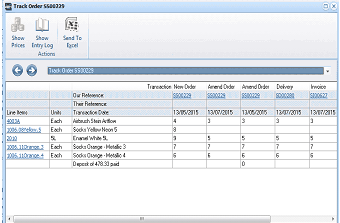
The "Track Order" window showing the full lifecycle of an order. The toolbar includes Show Prices, Show Entry Log, and Send To Excel buttons. The main area displays a "Track Order" grid with columns for Our Reference, Their Reference, Transaction type, New Order (date), Amend Order (date), Delivery (date), and Invoice (date). Multiple line items are shown with product descriptions (Units listed as "Each"), tracking them from the original order through amendments, delivery, and invoicing stages. Quantity columns show the progression of quantities through each stage. A note about payment status appears at the bottom.
Transaction Details
- View Selected Batch: You can view all the postings in a selected batch by selecting "View Selected Batch". A column chooser is available so that you can select the columns you wish to see on the batch details. you can also print the selected batch by selecting the Print Batch List button on the Ribbon or Send the details to Excel by selecting the Send to Excel.
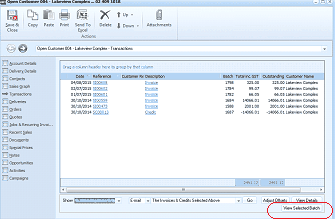
The customer account Transactions tab with the "View Selected Batch" button highlighted at the bottom right of the screen. The transaction grid shows multiple transactions with columns for Date, Reference, Customer Ref, Description, Batch, Total inc GST, Outstanding, and Customer Name. One transaction row is selected/highlighted. The bottom bar shows options for output method, "Adjust Offsets", "Stop Payments", "View Selected Batch" (circled/highlighted), and "View Details" buttons.
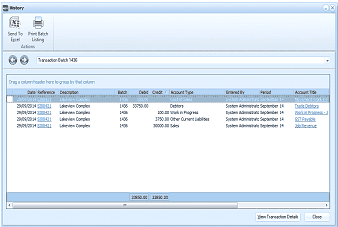
The "History" window showing batch details for a specific Transaction Batch. The toolbar includes "Send To Excel" and "Print Batch Listing" buttons. The main grid displays columns for Date, Reference, Description, Batch, Debit, Credit, Account Type, Entered By, Period, and Account Type. Multiple posting lines are shown for the selected batch, including entries to different ledger accounts such as Debtors, Sales, Other Current Liabilities, etc. Each line shows the corresponding debit or credit amount. Totals are displayed at the bottom. A "View Transaction Details" button and "Close" button are at the bottom right.
Batch Details.