Customer Accounts - Special Prices & Notes
Customer Accounts - Special Prices & Notes
Any special prices shown here will be used in invoicing unless the standard price is lower.
-
Change Special Prices or Discounts:
When you select the customer "Special Prices" tab a list of special prices or discounts pertaining to that customer will be displayed. These prices and discounts can be edited for that customer by selecting the item on the list and entering the change.
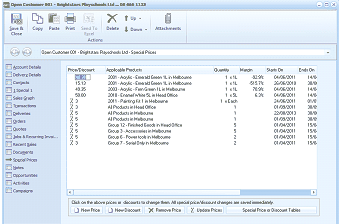
The customer account window showing the Special Prices tab. The left sidebar shows navigation tabs with "Special Prices" selected. The main area displays a grid of special prices and discounts with columns for Price/Discount, Applicable Products, Quantity, Starts On, Expires On, and other details. Multiple rows show different pricing rules for specific products or product groups, including percentage discounts and quantity-based pricing. At the bottom are buttons including "New Price", "New Discount", "Remove Price", "Update Prices", and "Special Price or Discount Table", along with a note stating "Click on the above prices or discounts to change them. All special price/discount changes are saved immediately."
Selecting 'Change Special Prices or Discounts' provides you with tabular information on available discounts from this customer. At a glance, you can assess discount options and the validity of those options.
You can also edit the table contents, add a new table, edit the table details, or remove a table from the list.
-
New Note: By selecting the Notes tab you can add a note for that customer. There are two sections for Notes - Accounting Notes and Sales Notes. When you add notes in the accounting section, you can also select the option to have this note displayed as a reminder each time you select this customer in a sales transaction. The note will be assigned to today's date and will be available for viewing or reporting with the other transactional data for that customer. The Sales Notes can be used to record sales activity, and can also be maintained in Web CRM if you are using Web CRM.
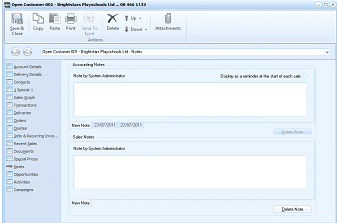
The customer account window showing the Notes tab. The left sidebar shows navigation tabs with Notes-related sections. The main area is divided into two sections: "Accounting Notes" at the top and "Sales Notes" at the bottom. Each section has a "Note by System Administrator" header, a checkbox option to "Display as a reminder at the start of each sale", a large text area for entering notes, and date fields showing "New Note" with dates. At the bottom right of each section is a "Delete Note" button. The "New Note" button allows adding additional notes.
Notes section of customer account