Users and Groups
Users and Groups
To modify user groups:
-
When you log in to ABM, enter the password for the System Manager as entered previously, and a "Select the Company" screen will appear.
-
At the top of the Select the Company screen, select Users, and a List of Users screen will appear.
-
In the List of Users screen, select Edit User Groups and a User Groups screen will appear:
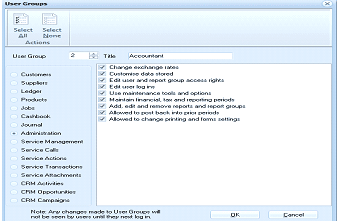
The User Groups dialog window in ABM. On the left side is a list of user group categories including Customers, Suppliers, Ledger, Products, Cashbook, Administration, Service Management, Service Call, Service Attachments, Service Transactions, CRM Activities, and CRM Campaigns. Each category can be selected via radio buttons. At the top are "Select All" and "Select None" buttons. The main area displays columns for a numbered list, Title, and Accountant, with checkboxes for various permissions such as "Change exchange rates," "Customer data sheet," "Edit user and report group access rights," "Edit user log in," "Use maintenance tools and options," "Maintain financial, tax and reporting periods," "Add, edit and remove reports and report groups," "Allowed to post back into prior periods," and "Allowed to change printing and forms settings." A note at the bottom reads: "Note: Any changes made to User Groups will not be seen by users until they next log in." OK and Cancel buttons are at the bottom right.
User Groups
The User Groups screen controls the security for each user who will be associated with a group. You can change the security options for each group and change the title of the group if required. The user groups, which range from one to ninety nine, have predetermined settings which can be modified for each ledger. Move through the user group by clicking the radio buttons to the left of the screen to see the various security options. You can change the security options for each ledger by removing or placing a tick in the appropriate box or selecting Select All or Select None.
-
When you have finished selecting your user group settings, click **OK **to apply the changes and return to the List of Users screen.
Users and Security
To add or modify users: In the List of Users screen, select either Add New User or Edit User Details. The following screen will appear:
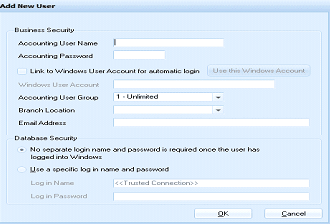
The Add New User dialog window in ABM. The "Business Security" section contains fields for: Accounting User Name (text input), Accounting Password (text input), a checkbox labeled "Link to Windows User Account for automatic login" with a "Use this Windows Account" button beside it, Accounting User Group (dropdown set to "1 - Unlimited"), Branch Location (dropdown), and Email Address (text input). The "Database Security" section below has two radio button options: "No separate login name and password is required once the user has logged into Windows" (currently selected) and "Use a specific log in name and password," with fields for Log in Name (showing "<<Trusted Connection>>") and Log in Password. OK and Cancel buttons are at the bottom right.
Add New User
Business Security
-
Accounting User Name: Enter the name you want to assign the user.
-
Accounting Password: Enter the password you want to assign to the user. The password can be up to 10 characters long.
-
Link to Windows User Account for automatic login: You can select the windows user account (the user name that the user will use to log onto their computer), and this will bypass the need to enter a user name and password each time you log onto ABM. Select the Check Box for this option and Enter the windows user name for that user Note: if the user is logged onto the computer you are working on you can select the button "Use this Windows Account" and the Windows User name will automatically be added.
-
Accounting Group: You need to determine what level of security this user will have and assign that user to the appropriate group as discussed in the previous section.
Database Security Database security allows you to determine how the user will connect to an SQL database, and will depend on network setup and SQL setup. If your Authentication is set to SQL Server and Windows, and that user is associated with a trusted connection, then select 'No separate login name and password is required once the user has logged into Windows
Otherwise, select a specific login name and password, and enter the user name and password, which allow you connect to an SQL database. You might need to contact your Network Administrator for assistance with the user name and login password.Security Settings
The system manager can determine if the users needs to type in their user name, or allow the user to select the name from the drop down list, or enforce Windows Authentication for each user, by selecting the appropriate option with the security settings. The system manager can determine which databases each user is allowed to access by selecting the required database from the drop down list and selecting the appropriate users. you can also select all uses if required. when the user is selected this will then display that company on the list of connected companies for that user. Note: The system administrator will need to Connect the company to the list before selecting the company from this drop down list see Connecting to an SQL Server Database or Connecting to an Access Database. When you select a database from the list it will show the location of that database (the SQL server if it is an SQL database or the file path if it is Access)
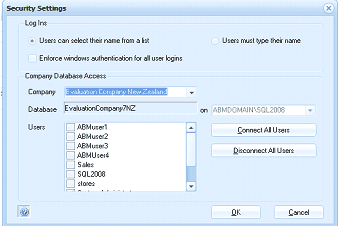
The Security Settings dialog window in ABM. The "Log Ins" section at the top has three radio button options: "Users can select their name from a list," "Users must type their name," and "Enforce windows authentication for all user logins." The "Company Database Access" section below contains a Company dropdown (set to "Evaluation Company New Zealand"), a Database field showing "EvaluationCompany7NZ" with the server location "on ABMDOMAIN\SQL2008," and a Users list displaying usernames such as ABMuser1, ABMuser2, ABMuser3, ABMUser4, Sales, SQL2008, and stereo. To the right of the users list are "Connect All Users" and "Disconnect All Users" buttons. OK and Cancel buttons are at the bottom right.