Adding Job Costing Groups
Adding Job Costing Groups
Before setting up your Job Costing ledger, you must set up job groups, one of which will be allocated to each job type. Using Job Groups can be useful as it can save you time re-keying repetitive information used throughout the group.
To set up a Job Group:
-
Select the Jobs section in the Folders list (left of main screen) and the second level menu appears.
-
Select Groups and a list of existing groups (if any) appears in the main viewing area (right of screen).
-
Select New on the menu bar and the Add New Job Group screen will appear:
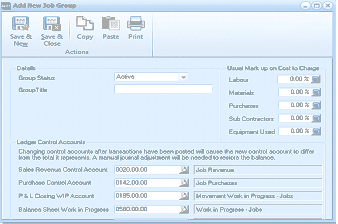
The "Add New Job Group" dialog window is displayed with a toolbar at the top containing Save & New, Save & Close, Copy, Paste, and Print buttons under an "Actions" section. The Details section shows a "Group Status" dropdown set to "Active" and a "Group Title" text field. The right side displays "Usual Mark up on Cost to Charge" fields for Labour (0.00%), Materials (0.00%), Purchases (0.00%), Sub Contractors (0.00%), and Equipment Used (0.00%). The "Ledger Control Accounts" section contains fields for Sales Revenue Control Account (0030.00.00), Purchase Control Account (0142.00.00), P & L Closing WIP Account (0145.00.00), Balance Sheet Work in Progress (0350.00.00), and additional fields for Transfers Control Account, Purchases not yet Invoiced, Job Provisions, Job Purchases, Movements Work in Progress - Jobs, Work in Progress - Jobs, Job Transfers, and Job Deliveries not Invoiced. A note at the top of the Ledger Control Accounts section warns that changing control accounts after transactions have been posted will cause the new control account to differ from the total it represents.
Add New Job Group
Details
-
Job Group Title: Type in the group title here as it is to appear in reports, for example, 'Construction Work'.
Ledger Control Accounts When you enter a transaction the postings to the control accounts will be posted automatically in accordance to the ledger accounts you specify.
-
Sales Revenue Control Account: Enter the Profit and Loss Sales Account for revenue generated by these jobs.
-
Purchase Control Account: Enter the Profit & Loss Purchase Account for purchases for these jobs.
-
P & L Closing WIP Account: Enter the Cost of Sales Account for the closing work in progress for these jobs.
-
Balance Sheet Work In Progress: Enter the Balance Sheet Account for work in progress.
-
Transfers Control Account: Enter the Cost of Sales Account for Stock transferred to jobs.
-
Purchases not yet Invoiced: Enter the Balance Sheet Account for job purchases which have been delivered to you but not yet invoiced by suppliers.
Usual Mark up on Cost to Charge
-
Labour: This is the percentage to be added to the cost of labour when calculating charges.
-
Materials: This is the percentage to be added to the cost of stock materials when calculating charges.
-
Purchases: This is the percentage to be added to the cost of purchases when calculating charges.
-
Sub Contractors: This is the percentage to be added to the cost of sub-contractors when calculating charges.
-
Equipment Used: This is the percentage to be added to the cost of equipment hire when calculating charges.
**Save Settings **To save the settings, select Save and Close at the top of the screen.