Supplier Accounts - Purchasing
Supplier Accounts - Purchasing
To enter purchasing details for a particular supplier, select Purchasing:
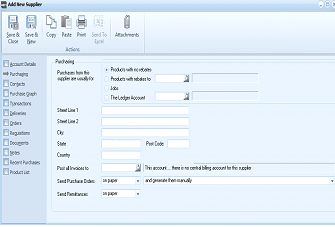
The "Add New Supplier" window showing the Purchasing tab. The left sidebar lists navigation tabs with Purchasing selected. The main area shows the "Purchasing" section with the field "Purchases from this supplier are usually for" with radio button options: "Products with no rebates" (selected), "Products with rebates to", "Jobs", and "The Ledger Account" (with an account selection field). Below is the mailing address section with fields for Street Line 1, Street Line 2, City, State, and Post Code. At the bottom are: "Post all Invoices to" (set to "This account - there is no central billing account for this supplier"), "Send Purchase Orders" (set to "on paper" with "and generate them manually" option), and "Send Remittances" (set to "on paper").
Purchasing section of Add New Supplier
The field: Purchases from this supplier are usually for, is to specify the purpose of the purchases from this supplier. This is useful for reporting purposes.
Purchases can be divided as follows:
-
Select Products with no rebates if you normally purchase stock from this supplier.
-
Select Products with rebates to if you normally purchase stock from this supplier, and you receive a rebate from your supplier when you sell their products, then you can nominate the ledger account where these rebates are to be credited to.
-
Select Jobs if the purchase from this supplier are usually for Jobs or Projects.
-
Select Ledger Account when purchasing from a supplier, and the ledger code being selected is the same on each occasion, then you can nominate this ledger code and it will be automatically selected when an invoice is being entered. This is usually an overhead. The ledger account can be selected by clicking the button to the right of the field and double clicking on the relevant ledger account. The description of the ledger account appears in the field to the right. See Adding a Ledger Account for more details.
-
Mailing Address: Enter the mailing address for this supplier. The address entered here appears on all purchase orders and remittances. If you want to see how the address is composed, click Mailing Address. This might be useful later if you are doing a mail merge using your supplier database.
-
Send Purchase Orders: Click the drop-down list to select the device to which purchase orders will be directed. If, for example you want to have a purchase order faxed, select 'by fax from the drop-down list.
-
Send Remittances: Click the drop-down list to select the device to which remittances will be directed. For example, if you want to have Remittance Advice both printed and e-mailed, select 'both paper and e-mail from the drop-down list.
-
Delivery Basis: Enter the delivery basis for Intrastat statistic reporting.
Supplier Purchase Statistics
When viewing an existing supplier you can see the past purchases for that supplier. Past purchases are shown for the current month, this month last year, year to date and year to date last year.