Supplier Accounts - Orders
Supplier Accounts - Orders
All the information on all orders is shown here, and can be arranged by date, reference numbers, and so on.
By selecting the options from the drop down list on the left hand side you can see transactions for the Past Month, Past Quarter, Past Year, a Date Range, Outstanding Orders Only or All Orders
.
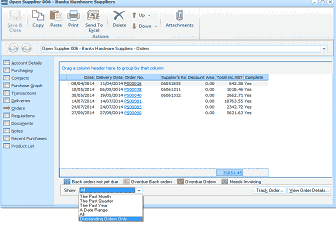
The supplier account window showing the Orders tab. The left sidebar shows navigation tabs with Orders selected. The main area displays a grid of purchase orders with columns for Date, Delivery Date, Order No, Supplier Ref, Discount Amt, Total Inc GST, and Delivery status. Multiple order records are listed with dates and monetary amounts. At the bottom is a "Show" dropdown with options including "All Past Month", "Past Quarter", "Past Year", "A Date Range", and "Outstanding Orders Only" (the dropdown is shown expanded). Status flags (colored indicators) appear to the left of each order indicating its status. Buttons at the bottom include "Track Order" and "Show Order Details".
-
Track Order: Shows all Deliveries, Returns, Invoices, and Credits relating to this order.
-
Order Status: The flags to the left of the order will signify its status. Orders are flagged are Back orders not yet due, Overdue Back orders, Orders overdue or that the orders has been delivered and needs to be invoiced.
-
View Order Details: This option allows you to view the selected order in more detail, e.g. Description, Quantity, Price, Discount, and allows you to export the transaction to Excel for further analysis, add a new note against the transaction, and preview print or e-mail the transaction.
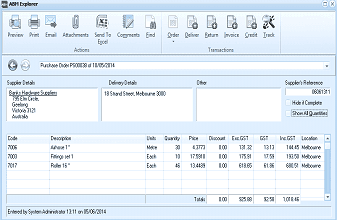
The ABM Explorer window showing a purchase order transaction in detail. The toolbar at top includes buttons for Preview, Print, Email, Attachments, Send To, Comments, Find, Order, Deliver, Return, Invoice, Credit, and Check. Below shows "Purchase Order" with a date. The screen displays Supplier Details (showing supplier name and address), Delivery Details (showing delivery address), Other section, and Supplier's Reference field. A "Made it Complete" and "Quantities" section are shown. The main grid lists line items with columns for Code, Description, Units, Quantity, Price, Discount, Exc GST, and GST. Multiple product lines including products and fittings are shown with pricing. Totals are displayed at the bottom. The status bar shows "Entered by System Administrator" with a date.
Transaction Details