Supplier Accounts - Transactions
Supplier Accounts - Transactions
All the information on previous and current transactions is shown here, and can be ordered by date, reference numbers, description, by clicking the appropriate header.
By selecting the options from the drop down list on the left hand side you can see transactions for the Past Month, Past Quarter, Past Year, a Date Range, Outstanding Transactions Only or All Transactions
.
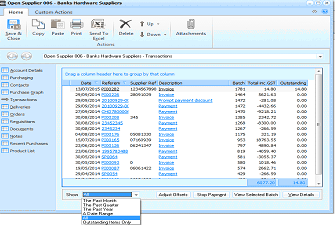
The supplier account window showing the Transactions tab. The left sidebar shows navigation tabs with Transactions selected. The main area displays a transaction grid with columns for Date, Reference, Supplier Ref, Description, Batch, Total inc GST, and Outstanding. Multiple transaction rows are listed showing invoices, payments, and other entries with dates and monetary amounts. At the bottom is a "Show" dropdown (expanded to show filter options including "The Past Month", "Past Quarter", "Past Year", "A Date Range", and "Outstanding Items Only"), along with buttons for "Adjust Offsets", "Stop Payments", "View Selected Batch", and "View Details".
-
Stop Payment: Any given payment can be stop by highlighting it and clicking this button.
-
View Transaction Details: Any given transaction can be examined in more detail by clicking View Transaction Details. The 'View Transaction Details' screen that appears also gives the supplier and delivery details, allows you to export the transaction to Excel for further analysis and add a new note. Transactions will only be displayed for the last three months by default. If you wish to see all transactions, then unselect the option for Last 3 months.
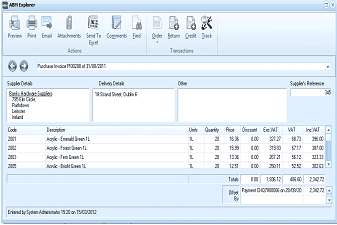
The ABM Explorer window showing a purchase invoice transaction in detail. The toolbar at top includes buttons for Preview, Print, Email, Attachments, Send To, Comments, Find, Order, Deliver, Return, Invoice, Credit, and Check. Below shows "Purchase Invoice" with a date. The screen displays Supplier Details (showing supplier name and address), Delivery Details (showing delivery address), Other section, and Supplier's Reference field. The main grid lists line items with columns for Code, Description, Units, Quantity, Price, Discount, Exc GST, and GST. Multiple product lines are shown with pricing details. Totals are displayed at the bottom right, including a "Bnpay" payment reference with an amount. The status bar shows "Entered by System Administrator" with a date.
Transaction Details
- View Selected Batch: You can view all the postings in a selected batch by selecting "View Selected Batch". A column chooser is available so that you can select the columns you wish to see on the batch details. you can also print the selected batch by selecting the Print Batch List button on the Ribbon or Send the details to Excel by selecting the Send to Excel.
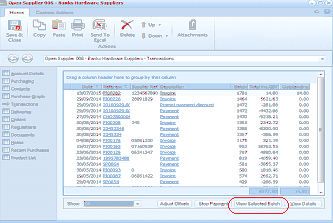
The supplier account Transactions tab with the "View Selected Batch" button highlighted at the bottom right. The transaction grid shows multiple transactions with columns for Date, Reference, Supplier Ref, Description, Batch, Total inc GST, and Outstanding. One transaction row is selected/highlighted. The bottom bar shows filter options and buttons for "Adjust Offsets", "Stop Payments", "View Selected Batch" (circled/highlighted in red), and "View Details".
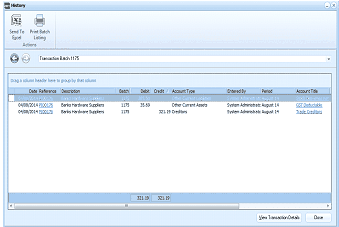
The "History" window showing batch details for a specific Transaction Batch. The toolbar includes "Send To Excel" and "Print Batch Listing" buttons. The main grid displays columns for Date, Reference, Description, Batch, Debit, Credit, Account Type, Entered By, Period, and Account Type. Two posting lines are shown for the selected batch, including entries to different ledger accounts such as "Other Current Assets" and "Creditors". Each line shows the corresponding debit or credit amount. Totals are displayed at the bottom. A "View Transaction Details" button and "Close" button are at the bottom right.
Batch Details.