Generating Reports
Generating Reports
To generate a Report:
-
In the main menu bar, select Documents and Reporting and select Management Reports
 Image Description
The Documents & Reporting section of the ABM main menu ribbon. The Task group shows buttons for Management Reports, Sales Reporting, Despatch Reporting, Print/Email/Send Documents, Document Server Manager, and Forms Settings.
The Reports option in the main menu
After you have selected the Reports option, the 'Customers Reports' screen appears:
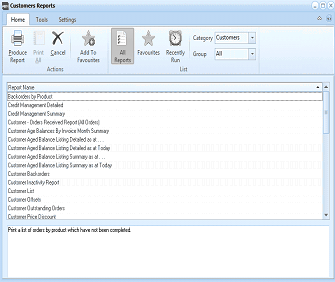
The Customers Reports screen. The toolbar ribbon shows the Home tab with buttons for Produce Report, Print All, Cancel, Add To Favourites, All Reports, Favourites, Recently Run, and a Category dropdown set to Customers, Group set to All, and a Report list. The Report Name list displays numerous reports including Backorders by Product, Credit Management Detailed, Credit Management Summary, Customer - Order Received Report, Customer Age Balances by Invoice Month Summary, various Customer Aged Balance Listing reports, Customer Batch orders, Customer Inactivity Report, Customer List, Customer Obits, Customer Outstanding Orders, and Customer Price Discount. A description at the bottom reads: "Print a list of orders by product which have not been completed."
Customers Reports
-
Reports List for the Group: The default group is 'All'. There are two other system-assigned groups, which can be selected from the drop-down list, for example, 'Customer Sales Reports'. This will then display the relevant reports for this particular group. You can also set up your own set of report groups and assign relevant reports to this group in the 'Modify Report Groups' option. See Modifying Report Groups.
-
Report Description: The Report Description field shows a summary of what the highlighted report contains.
-
Select the report you want to view. If you want to view a group of reports, select the group name from the 'Reports List for the Group' field.
-
a. If you have selected one report from the Reports List, select 'Produce Report' to view the report:
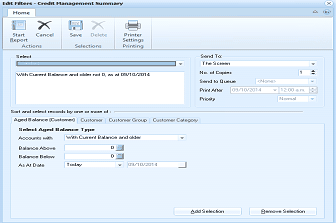 Image Description
The Edit Filters dialog for the Credit Management Summary report. The toolbar ribbon shows the Home tab with buttons for Start Report, Cancel, Save, Delete, Printer Setup, Selections, and Printer Printing. The top section shows a Select field with filter criteria "With Current Balance and older not 0, as at 09/10/2014". The right side has Send To options: To Screen, No. of Copies, Send to Queue, Print After (date and time fields), and Priority set to Normal. The lower section shows "Sort and select records by one or more of" with tabs for Aged Balance (Customer), Customer, Customer Group, and Customer Category. The visible Select Aged Balance Type section shows fields for Account Type (set to "With Current Balance and older"), Balance Above, Balance Below, As at Date (with Today checkbox), and a date field. Add Selection and Remove Selection buttons appear at the bottom.
Edit Filters screen for Customer List Report
b. If you have selected a group of reports, select 'Print All' to view and print the selected reports from the Report Group.
In the 'Send To' field of the Edit Filters screen, you have the option to either:
-
Send the report to the screen
-
Send the report to the printer (to change printer, select 'Printer Setup' in the menu bar)
-
Export the report (e.g. to Excel)
-
Change Selection: Select this option to customise the appearance of your report. See Customising Reports.
-
Start Report: To preview the report before printing or exporting, select the 'Start Report' option and a preview screen appears as below. The balances will have changed according to your selections.
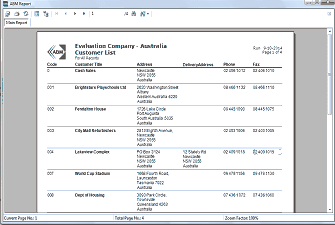
The ABM Report preview window showing an "Evaluation Company - Australia Customer List" report. The report displays a table with columns for Code, Customer Title, Address, Delivery Address, Phone, and Fax. Multiple customer records are visible including entries like Brightstars Playschoools Ltd, Fountaine House, City Mall Refreshments, Lawrence Complex, World Cup Station, and Days of Housing, each with their respective address, phone, and fax details. The toolbar at the top shows a Close Report button, and the bottom status bar displays Current Page No. and Total Pages along with a Zoom Factor set to 100%.
Customer List Report Preview
To view the report preview options, see Previewing Reports.
Send a Report to A Queue
You can send reports to a queue to be printed later by selecting the Queue, and the date and time. See Managing Queues