Adding Reports
Adding Reports
To add a new report to the Reports list:
From the main Reports screen, Select Tools. The following screen will appear:
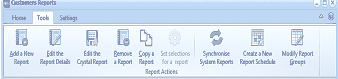
The Customers Reports toolbar ribbon showing the Tools tab selected. The Report Actions section displays buttons for: Add a New Report, Edit the Report Details, Edit the Crystal Report, Remove a Report, Copy a Report, Set selections for a report, Synchronize System Reports, Create a New Report Schedule, and Modify Report Groups. The Settings tab is also visible.
Select Add a New Report from the list and the New Report screen is displayed:
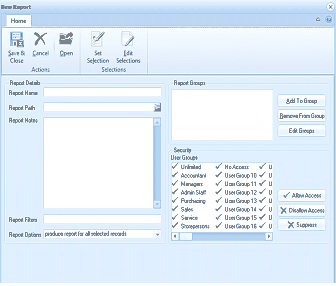
The New Report dialog window. The toolbar ribbon at the top shows the Home tab with buttons for Save & Close, Cancel, Open, Set Selection, and Edit Selections under the Actions group. The left side contains Report Details fields: Report Name, Report Path, Report Notes (a large text area), Report Filters, and Report Options (set to "produce report for all selected records"). The right side shows Report Groups with buttons for Add To Group, Remove From Group, and Edit Groups. Below is a Security section listing User Groups with checkboxes: Unlinked, Accountant, Managers, Admin Staff, Purchasing, Sales, Service, Storekeepers (and more User Groups numbered 10-16 with U labels), with Allow Access, Disallow Access, and Suppress options on the right.
Edit Report screen
-
Report Name: Enter a descriptive name for the new report.
-
Report Path: Enter the path to the actual Crystal Report File this new report is based on. Click the folder button to browse for the file.
-
Report Notes: Enter any notes to display for this report.
-
Report Filters: Click Set Selection to select a filter to be used with the report. To customise a report and set selections, see Customising Reports.
-
Edit Selections: Select this option to edit a report filter.
-
Report Options: Select how you would like to produce the report from the drop-down list.
Report Groups
-
Add To Group: Select a group to which this report will belong.
-
Remove From Group: Remove the report from the selected group.
-
Edit Groups: Select this option to view and edit report groups. When you have finished making the appropriate selections for the new report, select Save and Close. This will save the report definition to the database.
-
Cancel: Warning: Selecting this option will cancel all entries made in the above fields.