Copying and Editing Reports
Copying and Editing Reports
ABM allows you to copy and edit existing reports, which you can then rename and modify the default filters. Note: Standard system reports cannot be modified but can be assigned to different groups.
-
From the main Reports screen, select the report you want to copy or edit and select **Tools **from the Menu bar The following options are available:
 Image Description
The Reports toolbar ribbon showing the Tools tab selected. The Report Actions section displays buttons for: Add a New Report, Edit the Report Details, Edit the Crystal Report, Remove a Report, Copy a Report, Set selections for a report, Synchronize System Reports, Create a New Report Schedule, and Modify Report Groups.
-
Select Copy a Report, and the Edit Report screen appears:
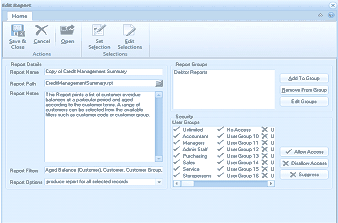 Image Description
The Edit Report dialog window. The toolbar ribbon at the top shows the Home tab with buttons for Save & Close, Cancel, Open, Set Selection, and Edit Selections under the Actions group. The left side contains Report Details fields: Report Name (showing "Copy of Credit Management Summary"), Report Path, Report Notes (showing a description about printing customer overdues at a particular period and aged according to customer terms with available filters), Report Filters, and Report Options (set to "produce report for all selected records"). The right side shows Report Groups with "Debtor Reports" listed and buttons for Add To Group, Remove From Group, and Edit Groups. Below is a Security section listing User Groups with checkboxes and access levels, with Allow Access and Disallow Access options.
-
Report Name: Enter a descriptive name for the report.
-
Report Path: Select the path to the actual Crystal Report file.
-
Report Notes: This is the description of the report. Change if necessary.
-
Report Filters: These are the filter options of the report that you are copying. To change filter options, select Edit Selection. For further details on filter options, see Customising Reports.
-
Set Selections: Select this option to add or remove selection filters to be used with this report, e.g. "Transaction Date".
Report Groups
-
Add to Group: Select a group to which this report will belong.
-
Remove From Group: Select this option to remove the report from the selected group.
-
Edit Groups: Select this option to view and edit report groups. See Modifying Report Groups.
When you have finished making the appropriate changes to the report, select Save and Close to record the changes.