Managing Queues
Managing Queues
To add or edit a queue, select File from the Business Today screen, and select Printer & Forms Settings.
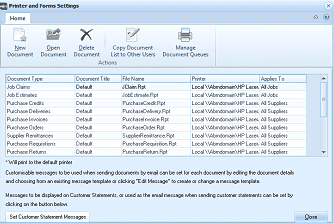
ABM Printer and Forms Settings screen. The toolbar shows buttons for New Document, Open Document, Delete Document, Copy Document List to Other Users, and Manage Document Queues under the Home tab. Below is a grid listing document types with columns: Document Type, Document Title, File Name, Printer, and Applies To. Documents listed include Job Claims, Job Estimates, Purchase Credits, Purchase Deliveries, Purchase Invoices, Purchase Orders, Supplier Remittances, Purchase Requisitions, and Purchase Returns with default form filenames and printer assignments. The "Manage Document Queues" button in the toolbar is the key action for this step. A note at bottom states "* Will print to the default printer" with options for customizable messages and a Set Customer Statement Messages button.
Select Manage Document Queues
This will bring up the following screen which will show a list of the Queues already set up.
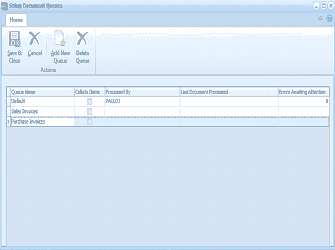
ABM "Setup Document Queues" dialog window. The toolbar shows Home tab with buttons for Save & Close, Cancel, Add New Queue, and Delete Queue under Actions. The main area displays a grid with columns: Queue Name, Collate Items (checkbox), Processed By, Last Document Processed, and Errors Awaiting Attention. Three queues are listed: "Default" (with a checkmark for Collate Items and "PAUL01" shown as Processed By), "Sales Invoices," and "Purchase Invoices." The grid allows editing queue names and settings directly.
You can change the description of an existing queue by selecting that queue name, and typing in a new description.
- Adding a Queue: Select Add New Queue and enter a queue name when the dialog box appears.
- **Deleting a Queue: **You can delete a queue from the list by selecting that queue and select Delete Queue
- Collate Items: If you select this check box then all emails sent to the same email address will be collated and sent in one email.