Adding Reports to Favorites
Adding Reports to Favorites
If you regularly run certain reports, then you can add those reports to your favourites list, so that you can easily identify these reports rather than having to scroll down through the entire reports list.
Adding a Report to your Favourites List.
To add a report to your Favourites List, select the report, and select Add to Favourites from the main menu.
You can then select the Favourites, and see these reports and produce the report from there.
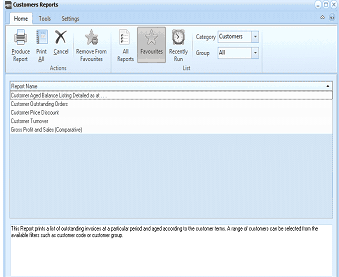
The Customers Reports screen showing the Favourites view. The toolbar ribbon at the top includes buttons for Produce Report, Print All, Cancel, Add To Favourites, Remove From Favourites, All Reports, Favourites, Recently Run, with Category set to Customers, Group set to All, and a Report list. The Report Name list displays favourite reports including Customer Aged Balance Listing Detailed as at, Customer Outstanding Orders, Customer Price Discount, Customer Turnover, and Gross Profit and Sales (Comparative). A description area at the bottom reads: "This Report prints a list of outstanding invoices at a particular period and aged according to the customer terms. A range of customers can be selected from the available filters such as customer code or customer group."
Favourite Reports List.
Removing a Report from the Favourites:
If you wish to remove a report from the favourites list, select that report and select Remove from Favourites.