Introduction to Reports
Introduction to Reports
You can produce Reports for all ledgers within Advanced Business Manager. Reports are displayed in Crystal Report (.rpt) format.
The Reports screen
-
Select the ledger from which you want to generate a report, e.g. 'Customers'.
-
In the main menu bar, select Documents and Reporting and select Management Reports.
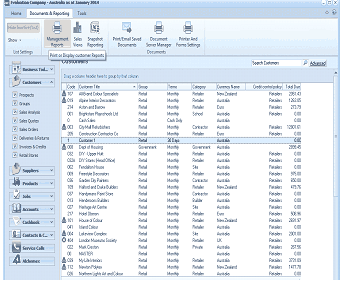 Image Description
The ABM main application window showing the Evaluation Company - Australia as at January 2014. The main menu ribbon shows the Documents & Reporting tab selected with buttons for Management Reports, Sales Reporting, Despatch Reporting, Print/Email/Send Documents, Document Server Manager, and Forms Settings. The left navigation panel shows a tree of modules including Customers, Sales Orders, Sales Deliveries, Invoices & Credits, Nominal Ledger, Purchase Orders, Suppliers, Products, Contacts & CRM, Service Calls, and Alchemex. The main content area displays a customer list with columns for Customer Title, Type, Currency Name, Confirmation, and other details, showing various company records.
The Reports option in the main menu
-
After you have selected 'Reports', the Customers Reports screen appears:
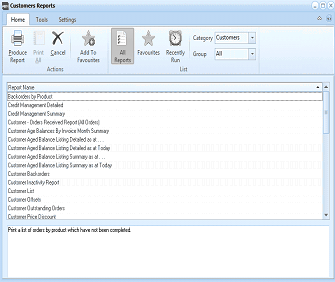 Image Description
The Customers Reports screen. The toolbar ribbon shows the Home tab with buttons for Produce Report, Print All, Cancel, Add To Favourites, All Reports, Favourites, Recently Run, and a Category dropdown set to Customers, Group set to All, and a Report list. The Report Name list displays numerous reports including Backorders by Product, Credit Management Detailed, Credit Management Summary, Customer - Order Received Report, Customer Age Balances by Invoice Month Summary, various Customer Aged Balance Listing reports, Customer Batch orders, Customer Inactivity Report, Customer List, Customer Obits, Customer Outstanding Orders, and Customer Price Discount. A description at the bottom reads: "Print a list of orders by product which have not been completed."
Customers Report List
-
Reports List for the Group: The default group is 'All'. There are two other system-assigned groups, which can be selected from the drop-down list, for example, 'Customer Sales Reports'. This will then display the relevant reports for this particular group. You can also set up your own set of report groups and assign relevant reports to this group in the 'Modify Report Groups' option. See Adding Report Groups and also Modifying Report Groups.
-
Category: If you wish to run a report for another ledger account e.g Trial Balance from the Ledger account then select Ledger from the drop down list and the Ledger reports will appear.
-
Report Description: The Report Description field shows a summary of what the highlighted report contains.
Report Tools
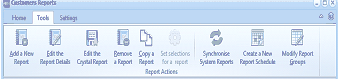 Image Description
The Customers Reports toolbar ribbon showing the Tools tab selected. The Report Actions section displays buttons for: Add a New Report, Edit the Report Details, Edit the Crystal Report, Remove a Report, Copy a Report, Set selections for a report, Synchronize System Reports, Create a New Report Schedule, and Modify Report Groups. The Settings tab is also visible adjacent to the Tools tab.
Report Tools Options
-
Add a New Report: Insert a new report into the Reports List. See Adding Report Groups.
-
Copy a Report: Copy an existing report, which you can then rename and modify the default filters. Note: Standard system reports cannot be modified but can be assigned to different groups). See Copying and Editing Reports.
-
Edit the Report Details: Select this option if you want to set up a new group selection of reports or change the default filters on customised reports See Copying and Editing Reports.
-
Edit the Crystal Report: This option is only available if you have Crystal Reports installed on your computer.
-
Modify Report Groups: If, for example, you are setting up the end of month reports, you can modify the report group to suit your needs. See Modifying Report Groups.
-
Set selections for a report: When you have selected a Report Group, this option will allow you to select filter sets for your reports.
-
Remove a Report: Removes the selected report from the Reports List. Note: You can only remove customised reports from the report list, and not standard reports.
** Report Settings**
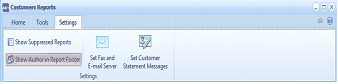
The Customers Reports toolbar ribbon showing the Settings tab selected. The Settings section displays buttons for: Show Suppressed Reports, Show Author in Report Footer, Set Fax and E-mail Server, and Set Customer Statement Messages.
- Show Suppressed Reports: You can decide to show reports which you have previously suppressed.
- Create New Report Schedule: You can create a schedule for a report. See Scheduling Tasks
- Set Fax and E-Mail Server see Fax and Email Server
- Show Author in Report Footer: If this option is selected then the user that produced the report will be printing on the bottom of the report.
- Set customer Statement Messages See Setting Customer Statement Messages