Setting Customer Statement Messages
Setting Customer Statement Messages
You can add a message that will appear on either all statements or statements that are e-mailed.
To add a message select Printer and Forms Settings and at the bottom of the screen there is an option to Set Customer Statement Message.
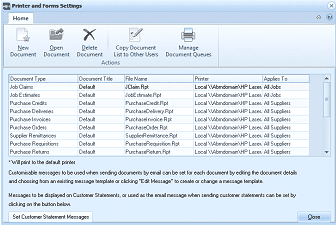
ABM Printer and Forms Settings screen. The toolbar shows buttons for New Document, Open Document, Delete Document, Copy Document List to Other Users, and Manage Document Queues. Below is a grid listing document types with columns: Document Type, Document Title, File Name, Printer, and Applies To. Multiple document types are listed with their default settings. At the bottom of the screen, there are notes about customizable messages for email and a "Set Customer Statement Messages" button that allows configuring messages displayed on customer statements or used in email when sending customer statements.
When you select Set Customer Statement Message the following screen will be opened.
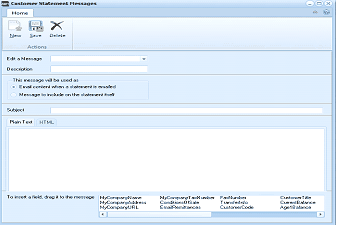
ABM "Customer Statement Messages" dialog window. The toolbar shows Home tab with buttons for New, Save, and Delete under Actions. Fields include: Edit a Message (dropdown), Description (text field), and a section "This message will be used as" with two radio button options: "Email content when a statement is emailed" and "Message to include on the statement itself." Below is a Subject text field, a toggle for "Plain Text" or "HTML" format, and a large blank message editing area. At the bottom is a section labeled "To insert a field, drag it to the message" with available database field tags including MyCompanyName, MyCompanyAddress, MyCompanyURL, MyCompanyVATNo, CustomerName, CustomerRef, ExpirationDate, ConditionsOfSale, CustomerCode, and others.
New Message: To create a new message select New and enter a description for that message. You can then design you email message.
The message will be used: You can select the message to be sent as an e-mail cover message when a statement is e-mailed or to appear on the statement body.** Note:** A different message will be saved for each selection.
From Address: If you wish to have a universal email address for you company you can enter the from address. This will override the sending email account in Outlook. Example Sales@EvalCo.Com
Reply Address: If you wish to enter a different email address so that the recipient can reply to an alternative address enter that address here. Example accounts@EvalCo.Com
Subject: Enter the subject title of the e-mail.** Tip:** You can drag the data fields which you see at the bottom of the screen into the subject field. Example if you wish to have the subject as Statement from My Company, then enter the words Statement and drag the field CompanyName into the subject field.
Email Message: You can create the message to appear as Plain Text or HTML format. Once you have decided on the format you can type in any message you require. You can add fields from the database such as customer name by dragging these fields onto the main body of the form. TIP: If you drag in the customer name and then wish to add the address on the next line then select the enter key to move to the next line before dragging the next field.
Save: When you have completed the message select save and this will save the document. Select Close to close the message edit screen.
Edit Message: If you wish to edit an email message or the statement message then select that message from the drop down list and then make the required changes or select Delete if you no longer require this message. Note: To select the appropriate message you will need to select the type of message first Example if you are editing an E-Mail message then select Email Content When Statement is E-Mailed and then select the message from the drop down list.
Selecting the Message when Printing the Statement
When you select reports and select Customer Statements you can then select Change Selection and select the Statement Message Tab. The following screen will appear.
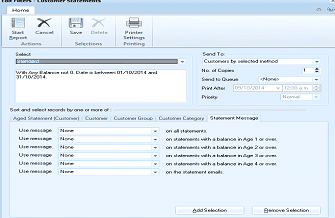
ABM "Customer Statements" report configuration screen. The toolbar shows buttons for Start Report, Cancel, Save, Delete, Printer Settings, and Printing. Tabs are visible including Selections and Printing. The screen shows a selection filter "Where Account Balance not 0, Date is between 01/10/2014 and 31/10/2014." The "Send To" section on the right shows options for "Customers by selected method," "Send to Queue" set to "None," "Print After" date field showing 09/10/2014 with a time, and "Priority" dropdown. Below is a "Sort and select records by one or more of" section with tabs for Aged Statement (Customer), Customer, Customer Group, and Customer Category, plus a "Statement Message" tab (currently selected). The Statement Message area shows a grid with columns for "Use message" checkboxes, message descriptions (showing multiple entries), and options for "on all statements," "on statements with a balance in Age 1 or over," "on statements with a balance in Age 2 or over," "on statements with a balance in Age 3 or over," and "on the statement emails." Add Selection and Remove Selection buttons are at the bottom.
From the drop down list you can select any statement message which you have saved and associate it to the selection options available.