Introducing the ABM Interface
Introducing the ABM Interface
Business Today When you first open the Advanced Business Manager company database, you are presented with the Business Today console:
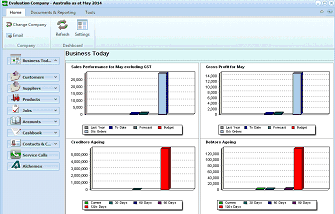
The ABM Business Today main console screen for "Evaluation Company - Australia as of May 2014". The left side shows a navigation folder list with sections: Business Today, Customers, Prospects, Suppliers, Products, Jobs, Accounts, Cashbook, Contacts & CRM, and Service Calls. The main area displays the "Business Today" dashboard with four chart panels: "Sales Performance for May excluding GST" (a bar chart showing Budget, To Date, Forecast, and Orders), "Gross Profit for May" (a similar bar chart), "Creditors Ageing" (a bar chart showing aging periods with colored bars for Current, 30 days, 60 days, 90 days, and 120+ days), and "Debtors Ageing" (a similar aging bar chart). The top toolbar includes buttons for Change Company, Refresh, and Settings.
The current reporting period is displayed in the main title bar.
To change the Business Today settings, select "Settings", and the settings screen will appear.
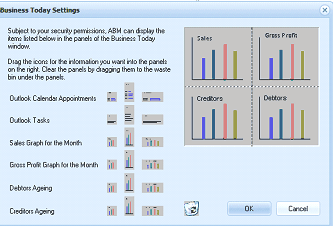
The "Business Today Settings" dialog box. At the top is explanatory text: "Subject to your security permissions, ABM can display the items listed below in the panels of the Business Today window." Instructions explain to drag icons into panels on the right, and to close panels by dragging them to the waste bin. On the left is a list of available items with small chart icons: Outlook Calendar Appointments, Outlook Tasks, Sales Graph for the Month, Gross Profit Graph for the Month, Debtors Ageing, and Creditors Ageing. On the right are four panel slots labeled Sales, Gross Profit, Creditors, and Debtors, each showing a preview chart thumbnail. OK and Cancel buttons are at the bottom.
You can then drag and drop the required items as required.
Business Today Display Settings
-
Outlook Calendar Appointments. - Will display your personal appointments set up in Outlook
-
Outlook Tasks. - Will display any tasks you have set up in Outlook
-
Sales Graphs for the Month. This will show the actual sales to date together with the budgeted sales, which are derived from the budgets entered for the month against the ledger sales accounts. The forecast sales for the month, which is calculated by dividing the actual sales in the month by the number of days so far in the month and multiplied by the total number of days in that month. The last column shows the value of orders outstanding at the current date.
-
Gross Profit for the Month. This will show the actual gross profit achieved to date together with the budgeted gross profit, which are derived from the budgets entered for the month. The forecast gross profit for the month, which is calculated by dividing the actual gross profit in the month by the number of days so far in the month and multiplied by the total number of days in that month. The last column shows the value of orders outstanding at the current date.
-
Debtors Ageing: Displays a graphical representation of the balance due by Debtors in accordance to the age of the balance.** Note:** The ageing is based on 30, 60, 90 and 120 days from the date of the invoice and is not aged in accordance to the terms set for the customer.
-
Creditors Ageing: Displays a graphical representation of the balance due to Creditors in accordance to the age of the balance. Note: The ageing is based on 30, 60, 90 and 120 days from the date of the invoice and is not aged in accordance to the terms set for the supplier.
To change the way ABM displays customers, suppliers, etc. see Customising the ABM Interface.
Change Navigation Bar
You can change the style of the Navigation Bar by selecting Tools\Options\Preferences and choosing one of the three options.
-
Use Outlook 2003 Bar
-
Use Folder Three with large icons
-
Use Folder three with no icons
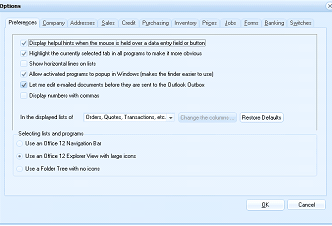 Image Description
The ABM Options dialog on the Preferences tab. The dialog has multiple tabs across the top: Preferences, Company, Addresses, Sales, Credit, Purchasing, Inventory, Prices, Jobs, Forms, Banking, and Switches. Checkboxes include: "Display helpful hints when the mouse is held over a data entry field or button", "Highlight the currently selected tab in all programs to make it more obvious", "Show horizontal lines on lists", "Allow activated programs to popup in Windows (makes the finder easier to use)", "Let me edit emailed documents before they are sent to the Outlook Outbox", and "Display numbers with commas". Below is a dropdown for "In the displayed lists of" (set to "Orders, Quotes, Transactions, etc.") with a "Change the columns..." button and "Preview Defaults" button. Under "Selecting lists and programs" are three radio button options: "Use an Office 12 Navigation Bar", "Use an Office 12 Explorer View with large icons", and "Use a Folder Tree with no icons". OK and Cancel buttons are at the bottom.
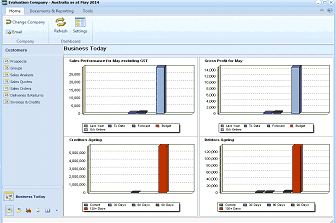 Image Description
The ABM Business Today console using the Office 12 Navigation Bar style. The title bar reads "Evaluation Company - Australia as of May 2014". The left navigation panel shows a tree-style folder list with expandable sections: Customers (with sub-items like Sales Analysis, Sales Quotes, etc.), Suppliers, Products, Jobs, Accounts, Cashbook, and Contacts & CRM. The main area displays the Business Today dashboard with four chart panels: Sales Performance for May excluding GST, Gross Profit for May, Creditors Ageing, and Debtors Ageing. A "Business Today" button appears at the bottom of the navigation panel.
Navigation bar using Office 12 Navigation bar
Image DescriptionThe ABM Business Today console showing the default Office 12 Navigation Bar layout. The left panel displays the folder list with large icon buttons for Business Today, Customers, Prospects, Suppliers, Products, Jobs, Accounts, Cashbook, Contacts & CRM, and Service Calls. The main area shows the Business Today dashboard with Sales Performance, Gross Profit, Creditors Ageing, and Debtors Ageing chart panels.
Navigation Bar using large icons
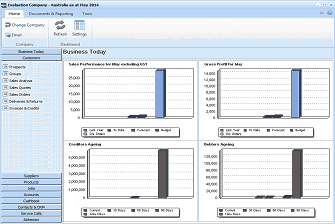 Image Description
The ABM Business Today console using the Folder Tree with no icons navigation style. The left panel shows a compact text-only tree list of sections: Business Today, Customers (expanded to show sub-items), Prospects, Suppliers, Products (expanded showing sub-items like Sales Analysis, Sales Quotes, Stock Valuation, Deliveries & Returns, Invoices & Credits), Jobs, Accounts, Cashbook, Contacts & CRM, and Service Calls. The main area displays the Business Today dashboard with the four standard chart panels. This style takes up less horizontal space compared to the large icons view.
Navigation bar with no icons
Synchronization with Microsoft Outlook When adding a new customer, prospect or supplier to your company database, ABM automatically records their contact details such as name, address, phone number in the Contacts folder in Microsoft Outlook. See Synchronising Outlook Contacts for more details.
The Business Today console includes the following:
-
Menu Bar
-
Main Toolbar
-
Folder List
Menu Bar The menu bar contains all the commands that tells ABM what to do. These commands are broken up into menus:
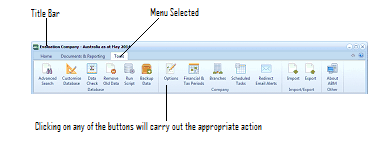 Image Description
The ABM Company Menu Bar displayed as a ribbon toolbar. The title bar shows "Evaluation Company - Australia as of May 2014". Annotations point out the "Title Bar" on the left and "Menu Selected" in the center. The ribbon contains tabs and buttons including: Advanced, Customise, Data, Restore, Run, Backup, Options, Financial & Tax Periods, Branches, Scheduled, Redirect, Import, Export, and Export Report. Below each button icon are labels. A note at the bottom reads "Clicking on any of the buttons will carry out the appropriate action."
See Company Menu Bar for more information.
Main Toolbar The main toolbar gives you quick access to commonly used commands in the ABM environment.
 Image Description
The ABM Main Toolbar ribbon. The title bar shows "Evaluation Company - Australia as of May 2014". The ribbon has tabs: Home, Documents & Reporting, and Tools. The Home tab is active and shows the Company section with "Change Company" and "Email" buttons, the Customer List section with buttons for "Add New", "View or Edit", "Settings", "Refresh", "Delete", and "Send To Excel", and additional buttons for Quote, Import, Edit, Delivery, Return, Invoice, and Receipt grouped under "Customer Actions".
Click the Refresh

button to display new or changed data which does not display automatically.
- New: Creates a new record for the selected section.
- Open: Opens the selected record.
- Delete: Deletes the selected record.
- Settings: Select the setting for the appropriate list such as "Show only my Customers", "Hide Inactive Customers".
- Send List: Sends the details of the current columns selected to Excel.
- Search: Search all columns on the list for a specified name, code, and so on. Here you can enter search criteria, such as "Retail" and select the Finder on the right hand side, and every account that has the word retail contained in any of the columns displayed will be filtered. To remove this filter select the X next to the search criteria entered.
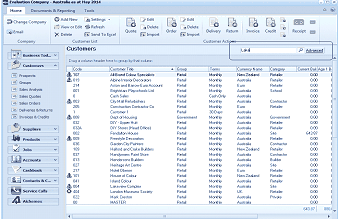
The ABM Customers list view showing the search and filter functionality. The toolbar shows buttons for Add New, View or Edit, Settings, Refresh, Delete, Send To Excel, Quote, Import, Edit, Delivery, Return, Invoice, Credit, and Receipt. In the top-right corner is a search field with a magnifying glass icon labeled "Find" and an "Advanced" button. The main grid displays customer accounts with columns including a checkbox, account number, customer name (such as "ABComet Colour Specialists", "Arch and Frame Line Account", "City Hall Furnishings", etc.), Terms (showing Monthly, Commercial, etc.), Country (New Zealand, Australia), and additional columns. The left navigation panel shows the folder list with Customers selected. The instruction "Drag a column header here to group by that column" appears above the grid.
-
QuickFind: If you are searching among your list of accounts, press a letter, and ABM will move to the first account which starts with that letter in the current sort order.
Folder List The folder list gives you a list of folders for you to choose from. When you select a folder, i.e. Customers, a list of sub-categories will appear:
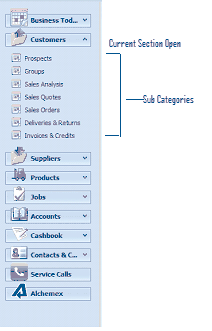 Image Description
The ABM Folder List navigation panel. It shows a vertical list of folder buttons with icons: Business Today (with a house/dashboard icon), Customers (with a person icon, currently expanded showing sub-categories: Prospects, Groups, Sales Analysis, Sales Quotes, Sales Orders, Deliveries & Returns, Invoices & Credits), Suppliers, Products, Jobs, Accounts, Cashbook, Contacts & C... (Contacts & CRM), Service Calls, and Alchemex. Annotations point out "Current Section Open" next to Customers and "Sub Categories" next to the expanded sub-items.
Folder List
To configure account lists:
-
It is possible to sort account lists in ascending or descending order under titles such as Account No, Account Title, Group and External Code by clicking the relevant heading (on top of main viewing area). Once clicked you will see an arrow beside the heading, if the arrow is pointing upwards, then this will sort in ascending order. If the arrow is pointing downwards, then this will sort in descending order. Simply select the heading to toggle between the two if required.
-
In the company menu bar, go to Tools, Options, Preferences.
Click the drop-down list to select the folder which you wish to customise, e.g. Customers, then click **Change the columns. **See Customising the ABM Interface for more details.
Alternatively:
-
Place the mouse pointer onto the column headings, right click and select Column Chooser.
Or:
-
Drag the column headings.
** Grouping, Sorting and Filtering the account list - **See Customising the ABM Interface for more details.