Registering and Unlocking Your Software
Registering and Unlocking Your Software
You must register and unlock ABM if you want to use it beyond the first month, or if you need extra user licences or modules.
To register the software:
-
Open Advanced Business Manager by double-clicking the icon from where you have installed the software, e.g. hard drive. A User Log In screen appears as below: Please note that the buttons will be disabled until you enter your password.
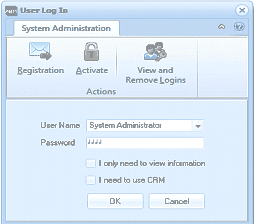 Image Description
The ABM User Log In dialog box. At the top are four icon buttons: "Registration", "Activate", "View and Remove Logins", grouped under a "System Administration" header, with an "Actions" label on the right. Below is a "User Name" dropdown (set to "System Administrator"), a "Password" field with masked input, a checkbox labeled "I only need to view information", a checkbox labeled "I need to use CRM", and "OK" and "Cancel" buttons at the bottom.
User Log In
-
Click Registration at the top of the screen. The Registration and Unlocking screen appears as below:
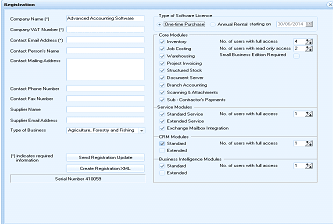 Image Description
The ABM Registration screen. On the left side are fields for: Company Name (showing "Advanced Accounting Software"), Company VAT Number, Contact Email Address, Contact Person's Name, Contact Mailing Address, Contact Phone Number, Contact Fax Number, Supplier Email Address, and Type of Business (showing "Agriculture, Forestry and Fishing" dropdown). A note indicates fields marked with an asterisk are required. A "Send Registration Update" button and a Serial Number field are at the bottom left. On the right side is "Type of Software" section with radio buttons for "One-time Purchase" and "Annual Rental" (with a starting date field). Below are "Core Modules" checkboxes including Job Costing, Document Invoicing, Structured Stock, Branch Accounting, Customer Attachments, and Sub-Contractors Payments. User license fields show "No. of users with full access" and "No. of users with read-only access", and a "Small Business Edition Required" checkbox. Below that are Standard Service and Extended Service radio buttons, Exchange Mailbox Integration with Standard/Extended options, and a Business Intelligence Module section with Standard/Extended options and user count fields.
Registration and Unlocking
-
Enter your company details such as name and address in the subsequent fields.
-
Under Supplier Name, enter the name of the supplier who provided you with the software.
-
Specify if the software is a one-time purchase or annual rental by clicking the appropriate radio button to the right of the screen. If you choose Annual Rental, select the start date.
-
Specify the modules in use by clicking the appropriate radio button.
-
Click the up-down arrows to select the number of users with full access to the software.
-
Click the up-down arrows to select the number of users with read-only access to the software.
-
Check the box only if you are using the Small Business Edition of the software.
-
When you have finished entering your registration details, select Send Registration. Your registration details will be stored in your Outbox, until you want to send the details to Advanced Business Manager. When you have sent your details, your dealer will then send you an Activation Code. This is a sequence of numbers which you must enter to unlock your software.
-
After you have received your Activation Code, restart ABM and click** Activate** in the User Log In screen:
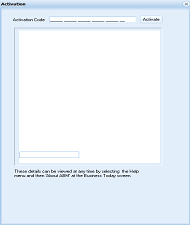 Image Description
The ABM Activation dialog box. At the top is an "Activation Code" text field with a series of dashes representing the code format, and an "Activate" button to the right. Below is a large empty text area. At the bottom is a note stating "These details can be viewed at any time by selecting the Help menu and then 'About ABM' at the Business Today screen."
Registration and Unlocking
- Enter the** Activation Code** provided by your dealer and select Unlock.
- ABM is now activated for use.