Synchronising Outlook Contacts
Synchronising Outlook Contacts
Note:* *For System Administrator Use Only
ABM is tightly integrated with Microsoft Outlook. In other words, if you are using Windows, ABM shares its contact records with Microsoft Outlook. The System Administrator needs to select which settings are to be applied to all ABM workstations on the network.
To synchronise your Outlook contacts, select Contacts in the navigation bar, and select Synchronise with Outlook and select Outlook Settings:
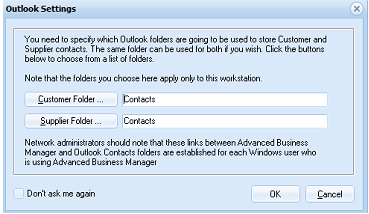
The Outlook Settings dialog window. At the top is the message: "You need to specify which Outlook folders are going to be used to store Customer and Supplier contacts. The same folder can be used for both if you wish. Click the buttons below to choose from a list of folders." Below is a note: "Note that the folders you choose here apply only to this workstation." Two rows show: "Customer Folder..." button with "Contacts" displayed next to it, and "Supplier Folder..." button with "Contacts" displayed next to it. A highlighted note at the bottom reads: "Network administrators should note that these links between Advanced Business Manager and Outlook Contacts folders are established for each Windows user who is using Advanced Business Manager." A "Don't ask me again" checkbox is at the bottom left, with OK and Cancel buttons at the bottom right.
You need to specify which Outlook folders will store your Customer and Supplier contacts. You can use the same folder for both if you wish. Click the Customer Folder and Supplier Folder buttons to select the appropriate folder.
Note: The Contacts folders you select here apply only this workstation.
When you have selected the appropriate settings, select OK to apply these settings.
Note: If you do not intend synchronising your contacts with Outlook you can select "Don't ask me again" and select Cancel and this message will not reappear.
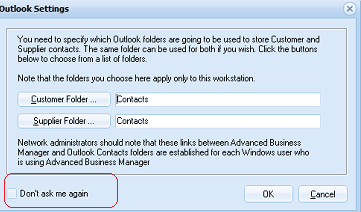
The same Outlook Settings dialog window as the previous image, but with the "Don't ask me again" checkbox highlighted with a red circle/annotation to draw attention to it. The dialog shows the same fields for Customer Folder and Supplier Folder (both set to "Contacts"), the informational message about specifying Outlook folders, and the network administrator note. OK and Cancel buttons are at the bottom right.
Updating Contacts:
You can update your contacts by Synchronising from ABM to Outlook or from Outlook to ABM by selecting the appropriate option from the dropdown list.
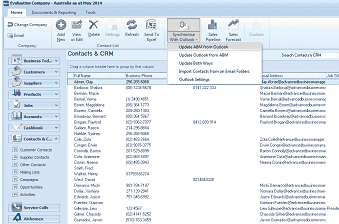
The Contacts & CRM screen in ABM with a dropdown menu open from the Synchronise toolbar button. The dropdown shows synchronisation options: "Update from Outlook," "Update Both Ways," and "Import Contacts from an Email folder." The main contacts list is visible in the background showing the standard table of contacts with columns for Full Name, Business Phone, Mobile Phone, and Email. The left navigation panel shows the same ABM categories (Customers, Suppliers, Products, Accounts, Cashbook, Customer Contacts, Supplier Contacts, Other Contacts, Mailing Lists, Service Calls, References).
You can also import contacts from your Email folder by selecting this option from the dropdown list and selecting the appropriate Outlook folder.