ABM Explorer
ABM Explorer
ABM Explorer uses the Internet Explorer style in allowing the user to move through pages of information by clicking on navigation buttons and selecting from a drop down page list.
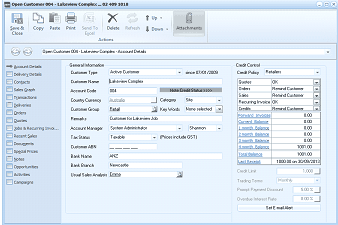
The ABM Explorer showing a customer account detail screen for "Open Customer 004 - Laformone Complex... 02 APR 2018". The toolbar at the top includes buttons: Save & Close, Copy, Move, Print, Delete, and Attachments. The left navigation panel shows sections: Account Details, Delivery Details, Contacts, Transactions, Sales Quotes, Sales Orders, Jobs & Recurring Items, Project Rights, Activities, Sales Analysis, and Notes. The main area displays the Account Details tab with General Information fields including Customer Type ("Active Customer" since 01/04/2009), Customer Title ("Laformone Complex"), Account Code ("004"), Country/Currency ("Australia"), Formula field, Account Manager ("System Administrator"), Customer ABN, Bank fields (Rank, Bank Code "APC"), Usual Sales Analysis ("ES09" dropdown). On the right side are Credit Control fields including Credit Policy, Credit Limit, Forward Invoice to Customer checkbox, Recurring Invoice to Customer checkbox, and other settings. Prices include GST checkbox is visible.
By selecting any of the links (highlighted in blue) you can drill down to the underlying information. Example select a customer and select the blue link on the age balance screen. This will show you the outstanding transaction making up that balance.
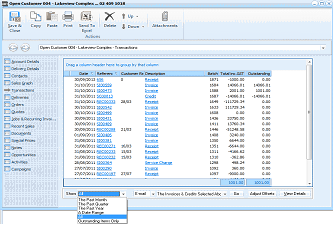
The ABM Explorer showing a customer's Transactions view for "Open Customer 004 - Laformone Complex - Transactions". The left panel shows navigation sections including Account Details, Delivery Details, Contacts, Transactions (currently selected), Sales Quotes, Sales Orders, Jobs & Recurring Items, Project Rights, Activities, Sales Analysis, and Notes. The main grid displays transaction records with columns: Date, Reference, Customer Ref, Description, Batch, Totals (inc. Tax), Outstanding, and additional columns. Transactions listed include invoices and credits with dates, reference numbers, amounts, and outstanding balances. Blue hyperlinked text is visible on reference numbers, indicating clickable drill-down links. At the bottom are filter options including Show (dropdown), options for Email, and buttons for adjusting offsets and viewing details.
From there you can select any of the links relating to the outstanding items (blue link on reference) and this will open the details of that invoice.
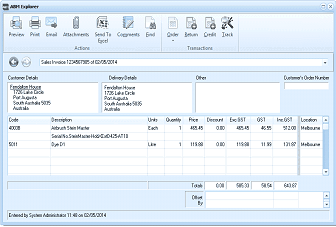
The ABM Explorer showing a Sales Invoice detail view. The title bar reads "ABM Explorer" and shows "Sales Invoice 123456785 of 02/05/2014". The toolbar includes buttons: Preview, Print, Email, Attachments, Send To, Components, and End, along with an Order button, Quote, Balance, Credit, and Track. The invoice displays Customer Details (Freealmon House address in South Australia 5015), Delivery Details (Freealmon House at a different address), and an "Other" tab. A Customer's Order Number field is visible. The line items grid shows columns: Code, Description, Units, Quantity, Price, Discount, Exc BST, GST, Inc GST, and Location. Two line items are listed: product 4X008 "Airbrush Start Marker" and 5011 "Dye D1" with quantities, prices, and tax calculations. The totals section at the bottom right shows subtotal, GST, and total amounts.
Navigation:
- Selecting Links: When you open any account you can navigate trough the explorer by selecting any of the blue highlighted links.
- Viewing Information: you can navigate through the various sections at the right hand side of the explorer (transactions, orders etc). As you select each section you can select any of the highlighted items and drill down.
- Moving Forward or Back: To go back to the previous item you were viewing you can select the Left Arrow on the top left hand corner of the explorer or select the dropdown list at the top of the explorer and select the section you want to go back to. similarly you can select the Right Arrow at the top left of the explorer to move forward to another transaction or select the item from the dropdown list. Example: if you open a customer account and select transactions and select an invoice this will display the details of the invoice. You will notice that there are links on this display such as the product code, sales analysis. By selecting the product code you can drill down to the product details. now if you want to go back to the customer summary screen then either select the left arrow key or select the option Open Customer (will show customer code and name). Note: You can also use the ALT key together with the directional arrow keys to navigate back and forward.
- Closing the Explorer: To close the explorer select Save and Close or click on the X on the right hand corner of the explorer.
Editing or Processing Sales and Purchase transactions while in the Explorer
If you open a sales or purchase transaction from the ABM Explorer you have a number of choices on the menu bar or the explorer depending on the selected transaction. E.G. Edit/Deliver/Invoice/Return or Credit a transaction. Example: if you open a customer order with the explorer you can view the details of the order in the normal way. However, you will notice that the menu has an option to Deliver, Return, Invoice or Credit the order. You will also note that there is a dropdown option on the order button which will allow you to Create a New Order for the selected customer, Edit the Order, Delete the order or Track the movement of that order.
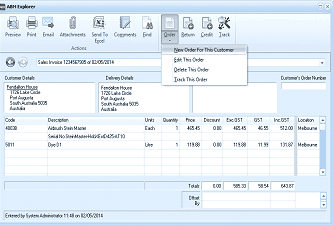
The ABM Explorer showing a Sales Invoice with the Order dropdown menu expanded. The same invoice (Sales Invoice 123456785 of 02/05/2014) is displayed as before. The "Order" button in the toolbar has been clicked, revealing a dropdown menu with options: "New Order For This Customer", "Edit This Order", "Delete This Order", and "Track This Order". This demonstrates the ability to perform order-related actions directly from the invoice view in the Explorer. The invoice details, customer information, and line items remain visible in the background.
Reassigning a Receipt/Payment to a different Bank Account
It is possible on occasions that a receipt or payment has been processed through the wrong bank account if more than one bank account exists. If you have selected the wrong bank from the drop down list while processing a receipt or payment you can reassign that receipt or payment to the correct bank account.
To reassign a bank account select the receipt or payment either from the Business Today Cashbook screen or from the account the transaction was posted to, such as customer or supplier account.
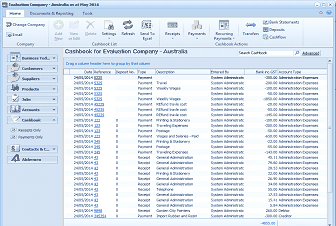
The ABM Business Today console showing the Cashbook view for "Evaluation Company - Australia". The toolbar shows tabs: Home, Documents & Reporting, Tools. Below are action buttons: Change Company, Settings, Refresh, Send To, Remarks, and Payments. The main grid displays the Cashbook transaction list with columns: Date, Sales/Purchase, Import No, Title (showing transaction descriptions like "Weekly Wages", "Parts Fees", "Office Trade charges", etc.), Bank (showing bank codes like "CIS", "Administration"), and additional amount columns. The left navigation panel shows sections with Cashbook currently selected. A search field with "Search Cashbook" and "Advanced" button appears in the top right.
Select the required receipt or payment and reselect the new bank account from the drop down list
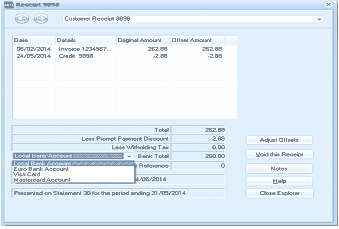
The ABM Receipt screen showing "Customer Receipt 9898". The screen displays a table with columns: Date, Details, Original Amount, and Offset Amount. Two entries are shown: "Invoice 1234567..." dated 05/02/2014 for 262.85 (offset 262.85) and "Credit 5038" dated 24/05/2014 for -2.08 (offset -2.85). Below the table are summary fields showing Total (262.85), Less Prompt Payment Discount (2.85), Less Withholding Tax (0.00), and a Bank dropdown field (currently showing a bank account selection). Payment method options are visible: Cheque, Direct Deposit, Visa Card, and Mastercard Account, with a date field showing "4/05/2014". On the right side are buttons: Adjust Offsets, Void Receipt, Notes, and Close Explorer. A note at the bottom reads "Processed on Statement 30 for the period ending 31/05/2014."