Ledger Email Alerts
Ledger Email Alerts
You can set up an E-mail alert so that an e-mail message is sent to the Financial Controller or any other person responsible for Budget Management. The e-mail alert can be sent when the costs exceed the budget for a particular account.
Setting up E-mail Alert
Select the Ledger and select Set E-mail Alert.
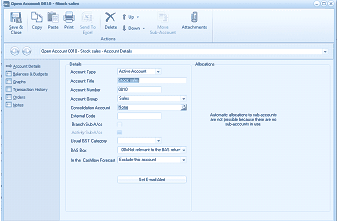
The "Open Account 0810 - Stock sales" screen showing the Account Details tab. The left navigation panel lists tabs: Account Details (selected), Balances & Budgets, Graphs, Transaction History, Orders, and Notes. The Details section shows fields for Account Type (set to "Active Account"), Account Title ("STOCKSALES"), Account Number ("0810"), Account Group ("Sales"), External Code, Used GST Category, BAG Box, and "In the Cashflow Forecast" field. An "Allocations" section on the right states "Automatic allocations to sub accounts are not possible because there are no sub-account types set up." A "Set E-mail Alert" button is prominently displayed at the bottom of the form.
This will open the settings screen as follows:
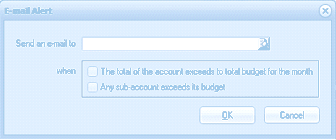
The "E-mail Alert" dialog box with a "Send an e-mail to" field at the top containing an empty text input and a finder/lookup button (F3). Below is a "when:" section with two checkboxes: "The total of the account exceeds its total budget for the month" and "Any sub-account exceeds its budget". The dialog has "OK" and "Cancel" buttons at the bottom right.
Send an e-mail to: Enter the recipients e-mail address. You can either enter this address manually or select the Finder button (F3) to select from your list of contacts.
When do you want the e-mail sent.
You can select the event which will trigger an e-mail to be sent to the nominated recipient when
- The total of the account exceeds the total budget for the month.
- Any Sub-Account exceeds its budget.
Note: both of the above options can be selected.