Ledger Account - Transaction History
Ledger Account - Transaction History
Information on previous and current transactions is shown here, and can be ordered by date, reference number, description, and so on. Transactions can be displayed for the Past Month, Past Quarter, Past Year, All Transactions or a specific date range. You can select these options from the drop down list. The previous selection will be selected by default.
Click 'View Transaction Details' to view all transaction history.
A column chooser is available so that you can select the columns you wish to see on the transaction list.
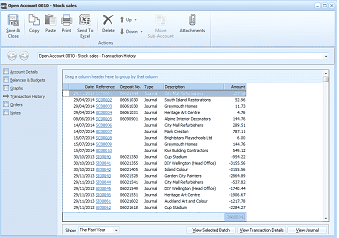
The "Open Account 0810 - Stock sales" screen showing the "Transaction History" tab. The left navigation panel lists tabs: Account Details, Balances & Budgets, Graphs, Transaction History (currently selected), Orders, and Notes. The toolbar includes Save & Close, Copy, Paste, Print, Send To, Delete, Down, and Attachments buttons. The main area displays a transaction history table with columns: Date, Reference, Deposit No., Type, Description, and Amount. Multiple transaction rows are visible showing various journal entries and transactions with dates, reference numbers, types (Journal, various transaction types), descriptions (such as "South Island Estimations", "Motor Vehicle Expenses", "City Mail Refurbishes", etc.), and corresponding amounts. At the bottom are filter options including "Show: The Past Year" dropdown and buttons for "View Selected Batch", "View Transaction Details", and "View Journal".
Transaction History List
-
View Transaction Details: Any given transaction can be examined in more detail by clicking 'View Transaction Details'. The 'View Transaction Details' screen that appears also gives details such as references, descriptions, and price breakdowns, and allows you to export the transaction to Excel for further analysis, add a new note against the transaction, and preview print or e-mail the transaction.
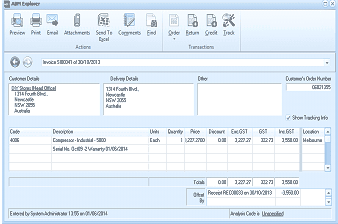
The "ABM Explorer" window showing detailed transaction information for an invoice (Invoice S80341 of 30/10/2013). The toolbar at the top includes Preview, Print, Email, Attachments, Send To, Comments, End, Order, Deliver, Return, Invoice, Credit, Track, and other buttons. The "Transactions" tab is selected. The form displays "Customer Details" on the left (showing company name "DC Stages Head Office" and address), "Delivery Details" in the center, "Other" section, and "Customer's Order Number" on the right with a "Show Tracking Info" button. Below is a line items grid with columns for Code, Description, Units, Quantity, Price, Discount, Exc GST, GST, and total amounts. The bottom shows Totals, with a note about "Percent Discount" and transaction totals of 3,950.00. A status line reads "Entered by System Administrator 13:55 on 07/05/2014" with "Analyse Costs" and "Unprocessed" links.
Transaction Details
-
View Selected Batch: You can view all the postings in a selected batch by selecting "View Selected Batch". A column chooser is available so that you can select the columns you wish to see on the batch details. You can also print the selected batch by selecting the Print Batch List button on the Ribbon or Send the details to Excel by selecting the Send to Excel.
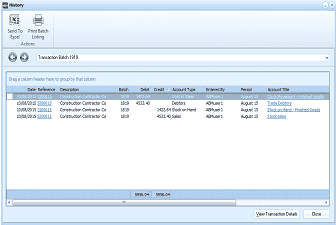
The "History" dialog window showing batch transaction details for "Transaction Batch 1819". The toolbar at the top includes "Send To Excel", "Print Batch List", and "Listing" buttons under an "Actions" section. The main area has a note "Drag a column header here to group by that column" and displays a table with columns: Date, Reference, Description, Batch, Debit, Credit, Account Type, Reference, Period, and Account Title. Several transaction rows are visible showing entries for "Construction Contractor Ca..." with batch number 1819, debits and credits in the 4000 range, account types including Debtors and Sales, and references to periods like "August" and "Trade or Non-Trade Provision Credit". Navigation links "TRIAL C#1" and "TRIAL C#4" appear at the bottom along with "View Transaction Details" and "Close" buttons.
Batch Details.
-
View Journal: You can view the details of the journal processed for this transactions.
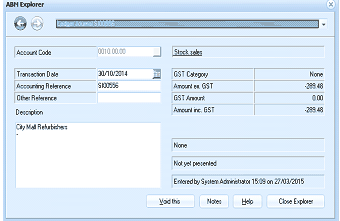
The "ABM Explorer" window showing journal transaction details for a specific transaction. The form displays fields for: Account Code (showing "0010 00.00 - Stock sales"), Transaction Date ("30/10/2014"), GST Category ("None"), Accounting Reference, Amount ex. GST (showing a negative amount), Other Reference, GST Amount ("0.00"), Description ("City Mall Refurbishes"), and Amount inc. GST. Below are fields showing "None" and "Not yet processed" status. At the bottom is an "Entered by System Administrator 15:09 on 27/03/2015" line, and buttons for "Void this", "Notes", "Help", and "Close Explorer".