Editing a Ledger Account
Editing a Ledger Account
Sometimes it might be necessary to change the details on a Ledger Account. For example, you might want to change the account from 'Active' to 'Inactive'.
To edit a Ledger Account:
-
Select** Accounts** in the Folders list (left of screen) and a list of existing accounts (if any) appears in the main viewing area (right of screen).
-
Double-click the account name which you want to edit and the details of that group appears as below:
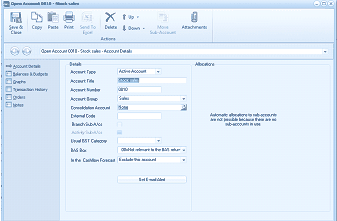
The "Open Account 0810 - Stock sales" screen showing the Account Details tab. The left navigation panel lists tabs: Account Details, Balances & Budgets, Graphs, Transaction History, Orders, and Notes. The Details section shows fields for: Account Type (set to "Active Account"), Account Title ("STOCKSALES"), Account Number ("0810"), Account Group ("Sales"), External Code, Used GST Category, BAG Box (showing "GST relevant to the BAS return"), and "In the Cashflow Forecast" field with an "Evaluate this account" option. On the right is an "Allocations" section stating "Automatic allocations to sub accounts are not possible because there are no sub-account types set up." A "Set E-mail Alert" button appears below. The toolbar includes Save & Close, Copy, Paste, Print, Send To, Down, and Attachments buttons.
Stock Sales Ledger Account
- Edit the account details as required. For a breakdown of each section, see Adding a Ledger Account. **Save Settings **To save the settings, select 'Save and Close' at the top of the screen.