Managing Campaigns
Managing Campaigns
Once you have created campaigns you can amend and manage these campaigns by selecting the Campaigns list and selecting a particular campaign.
When you open a campaign to view or edit the following screen will appear.
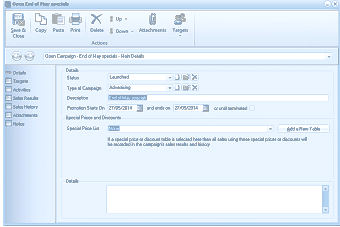
The Open Campaign screen in ABM showing the Main Details for the "End of May specials" campaign. The toolbar includes buttons for Save & Close, Copy, Paste, Print, Delete, Down, Attachments, and Targets. The left panel shows tabs for Details, Activities, Targets, Sales Results, Sales History, Attachments, and Design Email. The main area displays fields for: Status (dropdown showing "Launched"), Type of Campaign (dropdown showing "Advertising"), Description ("End of May specials"), Promotion Starts On (showing "27/05/2014" with "and ends on" showing "27/05/2014" and an "or until terminated" checkbox). Below is a "Special Prices and Discounts" section with a Special Price List dropdown, and a Details text area for additional information.
You can amend any of the details for this campaign.
Targets:
If you select the Targets list you will see what contacts have been added for this campaign. If you wish to add additional contacts select the option from the dropdown list.
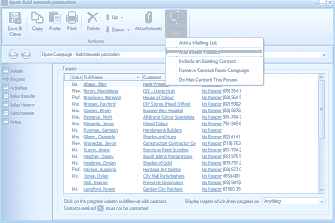
The Open Campaign screen showing the Targets tab for the "Gold minerals promotion" campaign. A dropdown menu is open from the Targets toolbar button showing options: "Add a Mailing List," "Add a New Contact," "Include an Existing Contact," "Remove Contact from Campaign," and "Do Not Contact This Person." The main area shows a Targets table with columns for row number, Full Name, Company, and additional contact details, listing multiple contacts with their associated companies (e.g., "OC Unisys Head Office," "Addison Colour Specialists," "Construction Commerce Co."). At the bottom is a section for tracking progress with contacts, showing "Display Targets with a progress set as" filter dropdown set to "Anything," and indicators for "Contacts not to follow up with" count.
- Add New Mailing List: You can add the targets by selecting an existing mailing list which will add all the contacts in that mailing list as targets for the campaign. See Mail Manager
- Add New Contact: If you wish to add new a new contact or contacts then select this option. See Visual Control of Contacts
- Include and Existing Contact: If you wish to select a contact that you have setup already in you contacts list then select this option: Note: If you have selected targets from a mailing list you can still add additional contacts by selecting this option.
- Remove Contact from this Campaign: You may have included contacts which may not be appropriate for inclusion in this campaign, in which case you can select that contact and remove the contact from the campaign.
- Do Not Contact This Person: You may wish to include contacts in the campaign but not wish to contact them. Or you may have already contacted this person and they do not wish to be contacted in relation to this campaign again. Note: When you select this option you will be asked if you wish to remove the contact from All Campaigns. If you answer yes then this person will be marked as not contactable on all other campaigns whereas if you select No then they will not be contacted in relation to this campaign only.
- Progress: By selecting the contact you can record the response received (if any) from that contact. Note: The status of the response is user definable and you can setup your own descriptions for the response. to add a new status select the icon next to the status. To delete a status select the status and select the icon next to the status field. You can then display the list according to the status set by selecting the display option from the dropdown list at the bottom of the screen.
- Open Contact: By selecting a contact and selecting the hyper link to that contact you can open the contact details.
- Open customer: By selecting a customer and selecting the hyper link to that customer you can open the customer account.
Activities:
You can view the activities associated with this campaign, or add a new activity by selecting the activities tab on the campaign. See Activities
Sales Results:
You can monitor the sales results of this campaign, which will show the sales for the period of the campaign, together with the comparative sales for the previous year. It will also show the sales value of the promoted products, as well as the sales of all products to the customers that are represented in the target list.
To see the sales results, open the specified campaign and select the tab Sales Results.
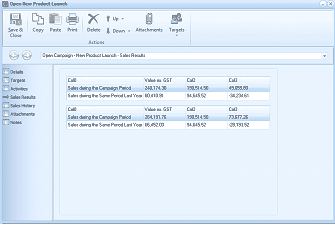
The Open Campaign screen showing the Sales Results tab for the "New Product Launch" campaign. The toolbar includes buttons for Save & Close, Copy, Paste, Print, Delete, Down, Attachments, and Targets. The left panel shows the Sales Results tab selected. The main area displays two tables. The first table shows "All" results with columns for Value ex GST and Value inc GST, with rows for "Sales during the Campaign Period" (showing values like 224,176.28 and 169,934.06), "Sales during the Same Period Last Year" (showing 80,819.76 and 84,845.02). The second table shows similar rows with different values, comparing current campaign period sales to the same period last year.
Sales History:
You can view all transactions relating to sales of the promoted products, or all products by selecting the Campaign and selecting the tab for Sales History. You can select the transactions for the promoted products by selecting that filter from the dropdown list at the bottom of the screen, or you can display all transactions during the promotion period.
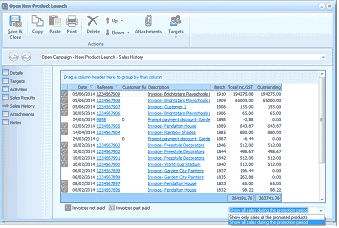
The Open Campaign screen showing the Sales History tab for the "New Product Launch" campaign. The toolbar includes buttons for Save & Close, Copy, Paste, Print, Delete, Down, Attachments, and Targets. The left panel shows the Sales History tab selected. The main area displays a detailed transaction table with columns for Date, Invoice number, Customer, Description (showing product names like "Prostate Pestherherb Flarowhale," "Prostate Roofing Wax/Proofs," "Prostate Decorations," "Prostate Gazebo Flat," etc.), and monetary values. At the bottom are summary totals showing "Invoices not paid" and "Invoices past paid" amounts, and a filter dropdown showing "Show only sales of the promoted products" to toggle between viewing promoted product sales or all product sales.
Attachments:
You can view any attachments that you have associated with this Campaign or add attachments as required. See Scanning and Attachments
Design Email:
You can create an email message which can be sent to the contacts in the targets lists. To create a new message select Design E-mails option from the tool bar.
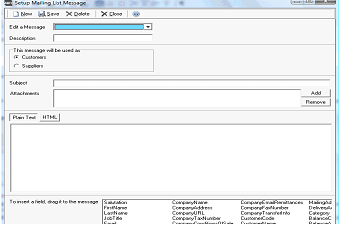
The Setup Mailing List Message dialog window in ABM. The toolbar shows buttons for New, Save, Delete, and Close. The main area contains: "Edit a Message" section with a Description field (dropdown), radio buttons for "This message will be used as" with options for Customers and Suppliers (Customers is selected), a Subject field, an Attachments field with Add and Remove buttons, and a message body area with tabs for "Plain Text" and "HTML." At the bottom is a section labeled "To insert a field, drag it to the message" displaying available data fields in two rows including Salutation, CompanyName, CompanySalesReferences, ManageLd, FirstName, CompanyAddress, CompanyFAX, LastName, CompanyHTML, CompanyTaxInvoicInfo, Category, Email, CompanyTaxNumber, CompanyPhone, BalanceInfo, and others.
Create a New Message: Select New
- Description: Enter a description for this message. Example Newsletter. When you are sending a message to any of your contacts in the mailing list you can choose this message from a drop down list.
- The Message will be used as: You can select whether it is customers or suppliers this message will be applicable to. In this case you should select Customers.
- From Address: If you want to enter a from e-mail enter this here.
- Reply Address: If you wish to have replies sent to a different e-mail address then enter that address here.
- Subject: Enter the subject title of the e-mail.** Tip:** You can drag the data fields which you see at the bottom of the screen into the subject field. Example if you wish to have the subject as Newsletter from My Company then enter the words Newsletter from and drag the field CompanyName into the subject field.
- Attachment: You can add an attachment which will be sent out each time this template is used. To add the attachment select the Add button and browse for the file.
- Body of Text: You can create the message in either plain text or HTML. To create the text simply type in the text of the message and drag any fields that you wish to have included in the message. If wish to use information from you accounts then drag the data fields onto the message such as CustomerName.
- Save: When you have finished creating the message select save.
Send Emails:
If you wish to send emails to the targets in the campaign, select Send Email from the menu bar, and select the campaign and then select a template from the dropdown list. Note: Emails will be sent to the targets unless they have been flagged as "Do Not Contact".
Viewing Customer Campaigns:
You can see what campaigns are associated to a particular customer, by selecting that customer, and selecting the Campaigns Tab. See Customer CRM Details