Introduction
Introduction
The DeskTop CRM is designed to fully integrate with ABM, and ABM Web CRM, providing a high speed interface for in-house use.
The DeskTop CRM will allow you to to setup Campaigns which can be organised and managed with measurable results. You can also set up sales activities and opportunities, which can be linked to campaigns. Documents can be attached to Campaigns and Opportunities.
Logging into ABM and Using CRM
When you log into ABM you will see a check box available for "I need to use CRM"
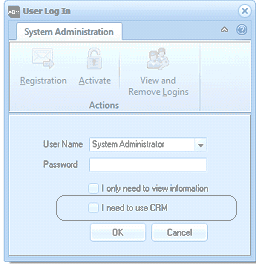
The User Log In dialog window in ABM. At the top is a "System Administration" toolbar with buttons for Registration, Activate, and "View and Remove Logins." Below is an "Actions" section with fields for User Name (dropdown showing "System Administrator"), Password (text input), and two checkboxes: "I only need to view information" and "I need to use CRM" (the CRM checkbox is highlighted/emphasized to show the option for enabling CRM access). OK and Cancel buttons are at the bottom.
If you select this option, you will be able to see a folder on the left hand side of the screen for Contacts & CRM (Note: If you have not selected "I need to use CRM" you may only see the Contacts folders"
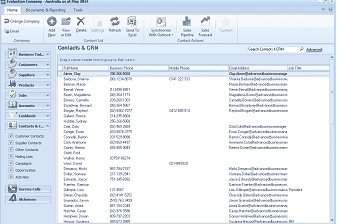
The Contacts & CRM screen in ABM showing the full contacts list view after logging in with CRM enabled. The top toolbar includes buttons for Change Company, Add, Edit, Delete, Settings, Refresh, Send To, Synchronise, and other CRM-specific actions. The left navigation panel shows the standard ABM categories (Customers, Suppliers, Products, Accounts, Cashbook) followed by the "Contacts & CRM" section containing: Customer Contacts, Supplier Contacts, Other Contacts, Campaigns, Opportunities, Activities, and References. The main area displays the contacts table with columns for Full Name, Business Phone, Mobile Phone, and Email. A "Search Contacts / CRM" search box is at the top right.
Steps in setting up DeskTop CRM
Step 1:
Contacts: If you have not already setup your contacts you will need to setup your contacts for use with Campaigns, Opportunities and Activities. See Adding New Outlook Contacts
Step 2:
Campaigns: You can setup new campaigns and associate contacts with these campaigns. See Campaigns
Step 3.
Opportunities: Having setup your campaigns you can setup opportunities (or sales pipelines) and link contacts and or customers to these opportunities. See Opportunities
Step 4
Activities: You can setup activities such as appointments or reminders and these can be linked to campaigns and opportunities. See Activities