Visual Control of Contacts
Visual Control of Contacts
You can view your contact details by selecting Contacts in the Navigation Bar.
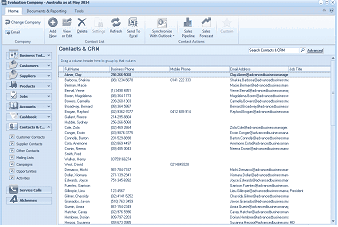
The Contacts & CRM screen in ABM showing the main contacts list view. The top toolbar includes buttons for Change Company, Add, Edit, Delete, Settings, Refresh, Send To, Synchronise, and other actions. A "Search Contacts / CRM" search box and "Advanced" link are at the top right. The left navigation panel shows categories: Customers, Suppliers, Products, Accounts, Cashbook, Customer Contacts, Supplier Contacts, Other Contacts, Mailing Lists, Service Calls, and References. The main area displays a table of contacts with columns for Full Name, Business Phone, Mobile Phone, and Email, listing multiple contacts with their details. The header shows "Evaluation Company - Australia as at May 2014."
List of all contacts.
You can select All Contacts or Customer Contacts only, Supplier Contacts only or Other Contacts (contacts not associated with customers or suppliers).
Managing Your Contacts
You can Add or Edit Contacts from the Contacts Menu Bar.
Contacts Menu

The Contacts menu toolbar in ABM showing the Home ribbon tab with two groups. The "Company" group contains the Change Company button. The "Documents & Reporting" and "Tools" sections contain buttons for Add, Edit, Delete, Settings, Refresh, Send To Excel, Sync With Outlook, Pipeline, Forecast, and Contact Actions. This toolbar provides access to all contact management operations.
Add Contact: Select New from the menu and the following screen will appear.
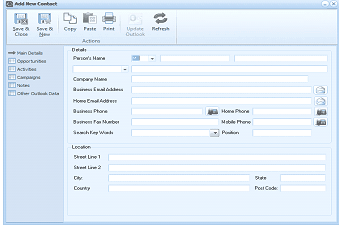
The Add New Contact dialog window in ABM. The toolbar at the top has buttons for Save & Close, Save & New, Copy, Paste, Print, Update Outlook, and Refresh. The left panel shows tabs for Main Details, Opportunities, Activities, Campaigns, Notes, and Other Outlook Data. The main "Details" section contains fields for: Person's Name (with title dropdown and name field), Company Name, Business Email Address, Home Email Address, Home Phone, Business Fax Number, Mobile Phone, Search Key Words (with a dropdown), and Position. Below is a "Location" section with fields for Street Line 1, Street Line 2, City, State, Country (dropdown), and Post Code.
When you have entered all the relevant details, you can select Update Outlook which will then add these details to your Outlook contacts folder. Select Save and Close to save the record.
Keywords: If you are using CRM you can select Keywords for the contact from the dropdown list or type in the Keyword for that contact. The keyword can then be used later for filtering on such contacts or adding them to a mailing list.
Edit contact Details: Select a Contact and select Edit from the Menu Bar and edit the details as required. When you have finished changing the details you can update Outlook with the changes.
Delete Contact: Select the contact to be deleted and select Delete from the Menu Bar.
Send List to Excel: You can send the details of your contact list to Excel by selecting the Send List option.
Synchronising Contacts: You can Synchronise your Contacts with Outlook (see Synchronising Outlook Contacts ) or Legrand (see Synchronising Legrand Contacts)
Viewing Campaigns, Opportunities and Activities on Contacts.
When you view a contact and you are using CRM, you will be able to look at any campaign, opportunity, or activity associated with that contact. To view the campaign, opportunity, or activity, select the appropriate tab on the left hand side of the screen. See Campaigns Opportunities Activities
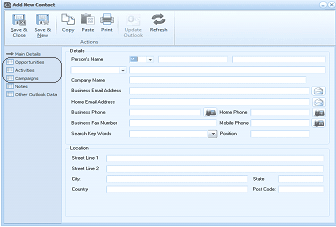
The Add New Contact dialog window in ABM, similar to the previous contact screen but with the left panel tabs visible and highlighted. The left panel shows tabs for Main Details, Opportunities, Activities, Campaigns, Notes, and Other Outlook Data, allowing users to view CRM-related information (campaigns, opportunities, and activities) associated with a contact. The main details area shows the same fields for Person's Name, Company Name, Business Email Address, Home Email Address, Home Phone, Business Fax Number, Mobile Phone, Search Key Words, Position, and Location fields (Street, City, State, Country, Post Code).