Opportunities
Opportunities
You can add/edit opportunities (sales pipelines) by selecting the Opportunities Tab on the left hand side of the screen, and selecting New.
When you select New it will open the following screen.
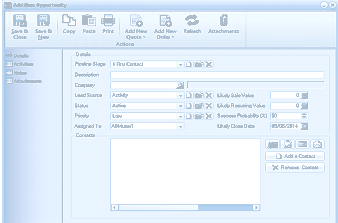
The Add New Opportunity dialog window in ABM. The toolbar includes buttons for Save & Close, Save & New, Copy, Paste, Print, Add New Quote, Add New Order, Refresh, and Attachments. The left panel shows tabs for Details, Activities, and Attachments. The main area contains fields for: Pipeline Stage (dropdown showing "1 (First Contact)"), Description, Company (with a finder button), Lead Source (dropdown showing "Activity" with an edit icon), Likely Sales Value, Status (dropdown showing "Active"), Likely Recurring Value, Priority (dropdown showing "Low"), Success Probability (%) (showing "50"), Assigned To (dropdown showing "ABMuser1"), Likely Close Date (showing a date), and a Contacts section at the bottom with buttons for "Add a Contact" and "Remove Contact."
- Pipeline stage: You can select the stage of this opportunity. Note: The stage is user definable and you can add a new stage such as First Contact, Quote Sent, by selecting the icon next to the stage field. Note: The stage should reflect what is happening with the pipeline so that you can see the progress of that opportunity, you can the sort and filter on this stage.
- Description: Enter a description for this opportunity (such as Year End Promotion).
- Company: If you wish to associate this opportunity to a specific company then select that company. If you want the opportunity to be associated with a number of contacts as opposed to a specific company, you can leave this field blank, and then add the contacts below for each of the companies you wish to associate with this opportunity. Note: if the opportunity is not associated with the company then it will not appear in the list of opportunities when you view that customer. However, it will appear if you view the opportunities under the contact. See Customer CRM Details
- Lead Source: You can select the lead source from the dropdown list. The lead source is user definable and you can add a new source such as Advertising, referral, by selecting the icon next to that field. Note: By adding the source of the opportunity you can then monitor the effectiveness of different campaigns such as advertising or mailouts, you can the sort and filter on this source so that you can evaluate the different sources for the opportunities.
- Status: You can add or amend the status of the opportunity from the dropdown list. The status is user definable Active, Pending etc, and a new status can be added by selecting next to the field.
- Priority: you can assign a priority to the opportunity such as High, Medium etc, by selecting the appropriate priority from the dropdown list. The list of priorities are user definable.
- Assigned To: You can assign this opportunity to a user who will be tasked with looking after this opportunity from the dropdown list.
- Likely Sales Value: You can enter an expected value for the potential sales relating to this opportunity.
- Likely Recurring Value: If the sales opportunity is likely to generate recurring income then you can enter the potential income here.
- Success Probability: Enter the potential success rate of this opportunity. This will enable you to view the potential sale value of this opportunity as well as the sale value of all opportunities.
- Likely Close Date: You can enter a date you expect this opportunity to be closed.
Contacts:
- If you have associated this opportunity with a customer then the contact associated with that customer will be automatically added. You can add additional contacts if required by selecting the option Add Contact.
- Telephone: you can record a telephone conversation with the contact by selecting the contact and selecting the icon . This will allow you to record details of a call and Start a Timer if required to time the length of the call.
- Add a Task: You can select a contact and add a task for that contact by selecting the icon . Note: this will add the task into your Outlook tasks.
- Add an Appointment: By selecting the contact you can record an appointment with that contact. To create an appointment select the contact and select the icon .
- Send an Email: If you wish to email the contact then select the contact and select the icon . This will open you Outlook Email and populate it with the contact's email address.
Viewing Appointments and Tasks
If you have added an appointment, activity or task for a contact then you will see a list of these appointments or tasks in the Business Today section of ABM.
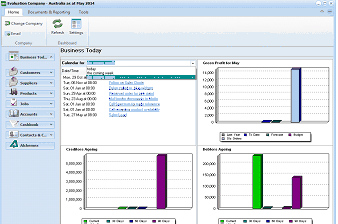
The Business Today dashboard screen in ABM. The top section shows a Calendar area displaying upcoming appointments, activities, and tasks for the current period, with entries such as appointments and follow-up items listed with dates and times. The right side shows a "Gross Profit for May" bar chart. The bottom half of the screen displays two bar charts side by side: "Creditors Ageing" on the left (showing aging buckets with monetary values) and "Debtors Ageing" on the right (showing aging buckets with monetary values in different colors). The left navigation panel shows the standard ABM categories (Business Today, Customers, Suppliers, Products, Accounts, Cashbook, References).
You can select the appointment or task and this will open that appointment or task in Outlook. By selecting an activity this will open that activity for review. You can select the display of opportunities or activities for Today, the coming week or the coming Month from the dropdown list.
Sales Pipeline:
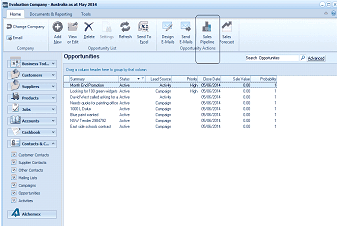
The Opportunities list screen in ABM. The toolbar includes buttons for Email, Add, Edit, View, Delete, Settings, Refresh, Send To, Design, Sales Pipeline, Sales Forecast, and other actions, plus an Opportunity List dropdown. The main area displays an Opportunities table with columns for Description, Status, Lead Source, Priority, Close Date, Sales Value, and Probability, listing multiple opportunities such as "Build a 100 green widgets" (Active, Campaign, High), "Sand storm cabinet painting office" (Active), "Wine Tasting 2002/13" (Active, Campaign), and others. A "Search Opportunities" box and "Advanced" link are at the top right. The left navigation panel shows the standard ABM categories plus Contacts & CRM sections including Customer Contacts, Other Contacts, Campaigns, Opportunities (currently selected), and Activities.
By selecting the Sales Pipeline button on the top menu bar, you can see a graphical representation of the sales value of all opportunities. The value will be broken down by stage.
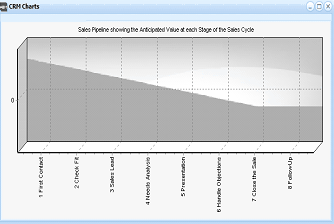
A CRM Charts window displaying the "Sales Pipeline showing the Anticipated Value at each Stage of the Sales Cycle." The chart is an area/line graph with the X-axis showing pipeline stages: 1 First Contact, 2 Check Fit, 3 Sales Lead, 4 Needs Analysis, 5 Presentation, 6 Handle Objections, 7 Close the Sale, and 8 Follow Up. The Y-axis shows monetary values. The shaded area represents the anticipated sales value flowing through each stage of the pipeline, generally showing a declining trend from early stages to later stages.
Sales Forecast
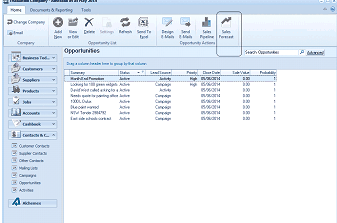
The Opportunities list screen in ABM, similar to the previous opportunities list view but accessed from the Sales Forecast perspective. The toolbar includes buttons for Change Company, Add, Edit, View, Delete, Settings, Refresh, Send To, Design, Sales Pipeline, Sales Forecast, and other actions. The Opportunities table displays columns for Description, Status, Lead Source, Priority, Close Date, Sales Value, and Probability with multiple opportunity entries listed. The left navigation panel shows the standard ABM categories and Contacts & CRM sections with Opportunities currently selected.
You can see the value of the forecasted sales for all opportunities, which is based on the Value, Probability and Expected Date of the opportunity, by selecting the button Sales Forecast from the top menu bar. This will then display a graphical representation of the forecasted sales value. This can be filtered between the status categories you set up for the opportunities such as Active, Dead, Pending, Won, by selecting the appropriate check box on the right hand side of the screen.
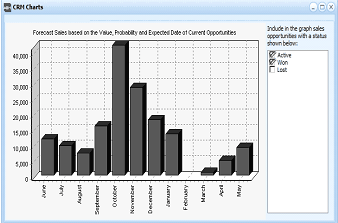
A CRM Charts window displaying "Forecast Sales based on the Value, Probability and Expected Date of Current Opportunities." The chart is a bar graph with the X-axis showing months from June through May (a full year), and the Y-axis showing monetary values from 0 to 40,000+. Each month has one or more bars representing forecasted sales values. The right side of the chart shows filter checkboxes for including opportunity statuses in the graph: Active (checked), Won (checked), and Lost (unchecked). Notable peaks appear in September and December periods, with varying forecast amounts across other months.
Viewing Customer Opportunities:
You can see what opportunities are associated to a particular customer, by selecting that customer, and selecting the Opportunities Tab. See Customer CRM Details