Mail Manager
Mail Manager
You can set up e-mail merge facilities allowing context sensitive e-mails to be sent out in bulk.
To set up a new mailing list select the Contacts folder, and select Mailing List
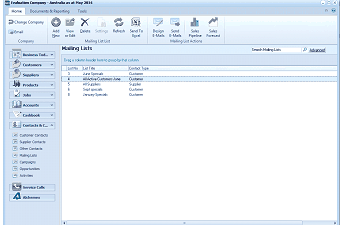
The Mailing Lists screen in ABM. The toolbar at the top includes buttons for New, Edit, View, Delete, Settings, Refresh, Send To, and navigation arrows (Up/Down). A "Search Mailing Lists" search box and "Advanced" link are at the top right. The left navigation panel shows the standard ABM categories (Customers, Suppliers, Products, Accounts, Cashbook, Customer Contacts, Supplier Contacts, Other Contacts, Mailing Lists, Service Calls, References). The main area displays a table of mailing lists with columns for list number, Mailing List Title (e.g., "All Active Customers June," "Jane Connolly," "Staff specials," "January Specials"), Contact Type (showing "Customer"), and Type.
Creating a New Mailing List: From the tool bar select New. This will open the following screen
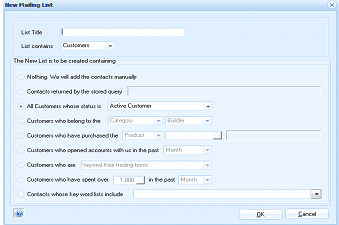
The New Mailing List dialog window in ABM. Fields include: List Title (text input), List contains (dropdown set to "Customers"). Below is the heading "The New List is to be created containing" followed by radio button options: "Nothing. We will add the contacts manually," "Contacts returned by the stored query," "All Customers whose status is" (with dropdown set to "Active Customers"), "Customers who belong to the" (with Category/Builder dropdowns), "Customers who have purchased the" (with Product dropdown), "Customers who opened accounts with us in the past" (with Month dropdown), "Customers who are" (set to "beyond their trading terms"), "Customers who have spent over" (with amount field showing "1,000" and time period dropdown showing "Month"), and "Contacts whose key word lists include" (with a text field). OK and Cancel buttons are at the bottom.
-
Title: Enter a title for this mailing list such as Monthly Newsletter
-
List Contains: Select which set of contacts the list is to be compiled from. The contacts can be selected from Customer, Supplier or Other contacts.
-
**Customer Selection: **The new list is created containing: If you have selected Customers then you can select from the following options how you wish to generate the mailing list.
-
Nothing we will add the contacts manually: This will allow you to manually select each contact from the contacts list selected.
-
Contacts returned by the stored query: You can enter an SQL query to formulate the list of contacts. Tip: You can use this query to select various criteria.
-
All Customers whose status is: You can select Active customers, prospects or inactive customers.
-
Customers who belong to the: You can select customers in a particular group or category.
-
Customers who have purchases the: You can select a specific product, or product group, or product category. When you select a specific product, or Group, you can enter the product code, or Group, or use the finder (or F3) to select the product or group. You can select the category from the drop down list.
-
Customers who opened accounts in the past: You can select from a list of customer that have been created in the past Week,Month, Two Months, Quarter or Year.
-
Customers who are: You can select from a list of customer who have exceeded their credit limit or are beyond their credit terms or who have exceeded their credit terms by double the terms.
-
Customers who have spent over: You can select customers who have purchased more than a specified amount in the last Week,Month,Quarter or Year.
-
Contacts whose keywords list include : If you are licensed for CRM and using CRM you can select the list based on the Keywords added for the contact. See Adding New Outlook Contacts
-
**Supplier Selection: **The new list is created containing: If you have selected Suppliers then you can select from the following options how you wish to generate the mailing list.
-
Nothing we will add the contacts manually: This will allow you to manually select each contact from the contacts list selected.
-
Contacts returned by the stored query: You can enter an SQL query to formulate the list of contacts. Tip: You can use this query to select various criteria.
-
All Suppliers whose status is: You can select Active customers, prospects or inactive suppliers.
-
Suppliers who belong to the: You can select customers in a particular group or category.
-
**Other Contacts Selection: **The new list is created containing: If you have selected Suppliers then you can select from the following options how you wish to generate the mailing list.
-
Nothing we will add the contacts manually: This will allow you to manually select each contact from the contacts list selected.
-
Contacts returned by the stored query: You can enter an SQL query to formulate the list of contacts. Tip: You can use this query to select various criteria.
-
All Contacts: This will return all the contacts that are in the list of Other Contacts
Editing Mailing Lists:
You can edit the mailing list by selecting View or Edit from the tool bar. This will open the screen for editing the list and you can then Add or Remove contacts from the list.
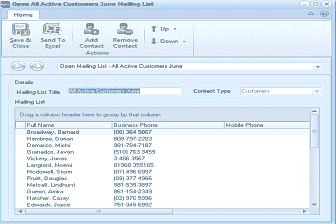
The Open Mailing List screen showing the details of the "All Active Customers June" mailing list. The toolbar includes buttons for Save & Close, Send To Excel, Add Contact, and Remove. Below is the "Details" section displaying the Mailing List Title ("All Active Customers June"), Contact Type ("Customers"), and a "Mailing List" tab. The main area shows a table of contacts with columns for Full Name, Business Phone, and Mobile Phone, listing contacts such as Broadway Barnard, Bradshaw Sharon, Damazio Millie, Gonzalez Gaile, Damazzio Irvin, Vickery Jason, Longuet Neon, McDonnell Glenn, Pratt Douglas, Mitchell Lyndhurst, and others with their phone numbers.
Designing an Email Message:
You can create an email message which can be sent to any of the contacts in the mailings lists available. To create a new message select Design E-mails option from the tool bar.
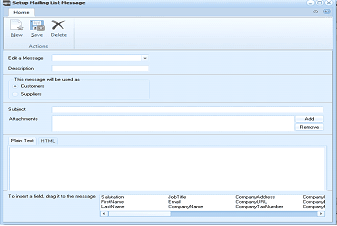
The Setup Mailing List Message dialog window in ABM. The toolbar at the top has buttons for New, Save, and Delete under a "Record" group, and an "Actions" section. The main area contains: "Edit a Message" section with a Description field, radio buttons for "This message will be used as" with options for Customers and Suppliers, a Subject field, an Attachments field with Add and Remove buttons, and a message body area with tabs for "Plain Text" and "HTML." At the bottom is a section labeled "To insert a field, drag it to the message" showing available data fields including Salutation, FirstName, LastName, Email, CompanyName, CompanyAddress, CompanyFax, CompanyPhone, and CompanySalesRandom.
Create a New Message: Select New
- Description: Enter a description for this message. Example Newsletter. When you are sending a message to any of your contacts in the mailing list you can choose this message from a drop down list.
- The Message will be used as: You can select whether it is customers or suppliers this message will be applicable to.
- From Address: If you want to enter a from e-mail enter this here.
- Reply Address: If you wish to have replies sent to a different e-mail address then enter that address here.
- Subject: Enter the subject title of the e-mail.** Tip:** You can drag the data fields which you see at the bottom of the screen into the subject field. Example if you wish to have the subject as Newsletter from My Company then enter the words Newsletter from and drag the field CompanyName into the subject field.
- Attachment: You can add an attachment which will be sent out each time this template is used. To add the attachment select the Add button and browse for the file.
- Body of Text: You can create the message in either plain text or HTML. To create the text simply type in the text of the message and drag any fields that you wish to have included in the message. If wish to use information from you accounts then drag the data fields onto the message such as CustomerName.
- Save: When you have finished creating the message select save.
Editing an existing message:
- If you wish to edit an existing message select Design E-Mails and select the message from the drop down list.
Send E-mails
To send the e-mail messages to the list of contacts in the mailing list select Send E-Mails from the tool bar.
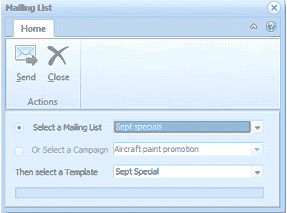
The Mailing List send dialog window in ABM. The toolbar shows Send and Close buttons under "Actions." Below are three fields: "Select a Mailing List" (dropdown showing "Sept specials"), "Or Select a Campaign" (dropdown showing "Aircraft paint promotion"), and "Then select a Template" (dropdown showing "Sept Special"). This dialog allows users to choose a mailing list or campaign and a message template before sending.
Select the required mailing list from the drop down list, then select the appropriate template from the drop down list. When you have made your selection, select send.