Activities
Activities
You can add activities for contacts such as reminders, appointments etc and link those activities to a campaign and or an opportunity.
To add a new activity select the Activities list on the left hand side of the screen and select New from the top menu bar.
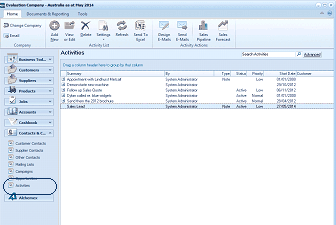
The Activities list screen in ABM. The toolbar includes buttons for Email, Add, Edit, View, Delete, Settings, Refresh, Send To, Design, Sales Pipeline, Sales Forecast, Activity Actions, and others. A "Search Activities" box and "Advanced" link are at the top right. The main area displays an Activities table with columns for activity description, Type, Priority, Assigned To, Start Date, and End Date/Outcome, listing entries such as "Appointment with Lyndhurst Mitchell," "Follow up Sales Quote," "Generate my 2013 brochure," and "Scratchies my 2013 brochure" with various statuses (Active) and assignments (System Administrator). The left navigation panel shows standard ABM categories plus Contacts & CRM sections with Activities currently selected and highlighted.
When you select New the following screen will appear
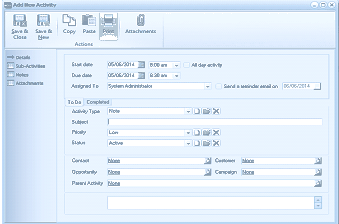
The Add New Activity dialog window in ABM. The toolbar includes buttons for Save & Close, Save & New, Copy, Paste, and Attachments. The left panel shows tabs for Details, Sub-Activities, Notes, and Attachments. The main area contains fields for: Start date (showing "05/06/2014" with time "9:00 am"), an "All day activity" checkbox, Due date (showing "05/06/2014" with time "0:58 am"), Assigned To (dropdown showing "System Administrator"), and "Send a reminder email on" with a date field (showing "05/06/2014"). Below is a "To Do" section with a "Completed" checkbox, and fields for: Activity Type (dropdown showing "Phone" with an edit icon), Subject, Priority (dropdown showing "Low" with an edit icon), Status (dropdown showing "Active" with an edit icon), and a "Relates To" section with fields for Contact (with a finder button), Opportunity (showing "None" with a finder button), Campaign (showing "None"), and Parent Activity (showing "None").
-
Start Date: Enter the start date for the activity: The start date will default to today's date.
-
End Date: Enter the date the activity is to end.
-
Assign To: You can select a user from the dropdown list to whom this activity is to be assigned to.
-
Send Reminder Email: If you want a reminder email to be sent, then select the check box and enter the date that the email is to be sent. This reminder will then be sent to the user who has been assigned to this activity. Note: if you need to change the user's email address then select that user in the user list and amend the email address. A reminder email is sent to each user assigned to the activity when the first person logs into the company on the specified date. When the activity is created or completed then a notification will be sent to the user assigned to that activity.
-
Activity Type: You can select an activity type from the dropdown list. Note: The activity type is user definable and new types such as Appointment, Call Back etc, can be added by selecting the icon next to the activity field.
-
Subject: Enter the description or subject matter for the activity.
-
Priority: enter the priority relating to this activity from the dropdown list. Note: The priority is user definable and new priorities such as High, Urgent, etc, can be added by selecting the icon next to the priority field.
-
Status: you can select a status applying to this activity from the dropdown list. Note: The status is user definable and new status definitions such as Active, In Progress etc, can be added by selecting the icon next to the status field. The status Completed can not be deleted as it is used to determine when the activity has been completed.
-
Relates To:
-
Contact: Select a contact to associate to this activity: The customer name to whom this contact is assigned to will appear on the right hand side of the contact field.
-
Opportunity: If you wish to have this activity linked to an opportunity then select the opportunity by selecting the finder, or selecting the F3 key. Note: The list of opportunities displayed will relate only to the contact selected.
-
Campaign: If you wish to link this activity to a campaign then select the finder, or F3 to select that campaign.
-
Parent Activity: If you wish to link this activity to another activity whereby the activity you are linking to is the main activity then select the finder, or F3 to select that activity. Note: if this activity is a Parent Activity you can select the Sub-Activities tab to see all activities linked to this activity.
-
Notes: You can add any additional notes as required.
Completed:
When the activity has been completed you can selected that activity and select the Status as Completed, and select the Complted Tab and enter the completed date (note the date will default to Today's date).
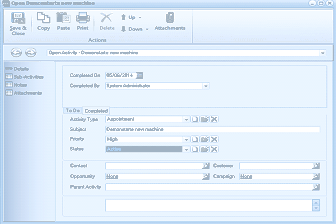
The Open Activity screen in ABM showing a completed activity titled "Demonstrate new machine." The toolbar includes buttons for Save & Close, Copy, Paste, Print, Delete, Down, and Attachments. The left panel shows tabs for Details, Sub-Activities, Notes, and Attachments. The main area shows: Completed On date (showing "08/06/2014"), Completed By (dropdown showing "System Administrator"), a "To Do" section with the "Completed" checkbox checked, Activity Type (dropdown showing "Appointment"), Subject ("Demonstrate new machine"), Priority (dropdown showing "High"), Status (dropdown showing "High"), and a "Relates To" section with fields for Contact, Customer, Opportunity (showing "None"), Campaign (showing "None"), and Parent Activity.
Note: If you have marked the activity as completed in error or wish to reactivate the activity, then select the activity, and change the status to Active, and Save and Close.
Viewing Customer Activities:
You can see what activities are associated to a particular customer, by selecting that customer, and selecting the Activities Tab. See Customer CRM Details