Customer CRM Details
Customer CRM Details
When you view a customer you can see the details of any campaigns,opportunities or activities associated with that customer.
Campaigns:
To view campaigns select the customer and select the Campaigns Tab. This will list any campaigns that are associated with this customer.
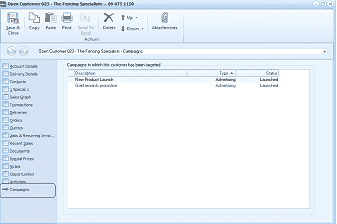
The Open Customer screen in ABM showing the Campaigns tab for customer 023 - "The Fencing Specialists." The toolbar includes buttons for Save & Close, Copy, Paste, Print, Delete, Email, Down, and Attachments. The left navigation panel lists tabs for Account Details, Delivery Details, Special 1, Special 2, Orders, Transactions, Notes, Sales & Recurring Items, Recent Sales, Special Prices, Opportunities, and Campaigns (currently selected, highlighted). The main area displays a table titled "Campaigns in which this customer has been targeted" with columns for Description, Type, and Status, showing entries such as "New Product Launch" (Advertising, Launched) and "End of month promotion" (Advertising, Launched).
Opportunities:
You can view the opportunities associated with this customer, by selecting the Opportunities Tab which will display a list (if any ) of the opportunities created for that customer.
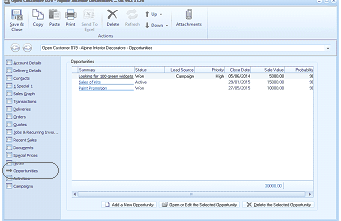
The Open Customer screen in ABM showing the Opportunities tab for customer B19 - "Alpine Home Decoration." The toolbar includes buttons for Save & Close, Copy, Paste, Print, Send To, Delete, Refresh, Down, and Attachments. The left navigation panel shows various tabs with Opportunities currently selected and highlighted. The main area displays an Opportunities table with columns for Description, Status, Lead Source, Priority, Close Date, Sales Value, and Probability, showing entries such as "Looking for 300 green widgets" (Won, Campaign, High), "Paint Promotion" (Won), and others. At the bottom are buttons for "Add a New Opportunity," "Open or Edit the Selected Opportunity," and "Delete the Selected Opportunity."
You can also Add or Edit an opportunity, by selecting the Add New Opportunity/ Open or Edit the Selected Opportunity button at the bottom of the screen. See Opportunities Note: You can also open the opportunity by clicking on the hyperlink on that opportunity.
Activities:
Activities created for this customer can be viewed by selecting the Activities Tab on the left hand side of the customer screen.
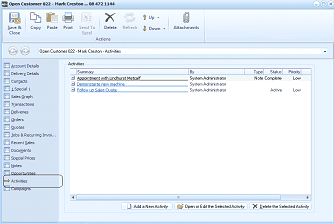
The Open Customer screen in ABM showing the Activities tab for customer 022 - "Mark Creaton." The toolbar includes buttons for Save & Close, Copy, Paste, Print, and others. The left navigation panel shows various tabs with Activities currently selected and highlighted. The main area displays an Activities table with columns for Activity description, Type, Delivery Date, Assigned To, Priority, and Status, showing entries such as "Appointment with Lyndhurst Mitchell" (System Administrator, Note Complete, Low), "Generate web new portfolio" (System Administrator, Active), and "Print Brochure" (System Administrator, Active, Low). At the bottom are buttons for "Add a New Activity," "Open or Edit the Selected Activity," and "Delete the Selected Activity."
You can also Add or Edit an activity, by selecting the Add New Activity/ Open or Edit the Selected Activity button at the bottom of the screen. See Activities Note: You can also open the activity by clicking on the hyperlink on that activity.
Keywords:
You can add keywords and associate the customer with a keyword or keywords (you can associate more than one keyword to the customer. The list of keywords is user definable, and to add a new keyword such as Retailer, Wholesaler etc , just type in the keyword required in the keyword field. The keywords can then be added to the customer list using the column chooser. they can also be used when creating a mailing list.
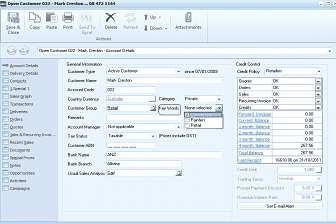
The Open Customer screen in ABM showing the Account Details tab for customer 023 - "Mark Creaton." The main area displays the "General Information" section with fields including: Customer Type (dropdown showing "Active Customer" with a date), Credit Policy, Account Code, Country/Language, Customer Group (dropdown showing "Retail"), Rewards, Account Manager, Tax Status (with "Tax Invoiceable" checkbox and field showing "Prices include GST"), Customer ABN, and Usual Sales Analysis Code (showing "Cdr"). On the right side are fields for Recurring Invoice information and a Keywords section highlighted with a dropdown showing options like "None selected," "Franchise," "Importer," "Retailer," and "Wholesaler," demonstrating the keyword association feature for CRM. Additional fields visible include balance and payment information.