Creating Campaigns
Creating Campaigns
You can add, edit and manage campaigns by selecting the Campaigns List and select Add New from the top menu bar.
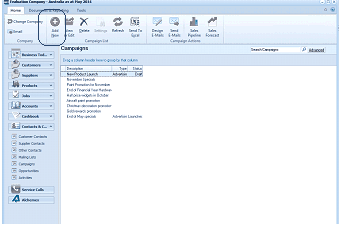
The Campaigns list screen in ABM. The toolbar includes buttons for Change Company, Add (with "New" highlighted in a callout), Edit, View, Delete, Settings, Refresh, Send To, and other action buttons. A "Search Campaigns" box and "Advanced" link are at the top right. The main area displays a Campaigns table with columns for campaign name, Type, and Status, listing entries such as "New Product Launch" (Advertiser), "End Financial Year Redlines," "Aircraft paint promotion," "End of month promotion," and "End of May specials" (Advertiser, Launched). The left navigation panel shows the standard ABM categories plus Contacts & CRM sections including Campaigns (currently selected), Mailing Lists, Service Calls, and References.
When you select New it will open the following screen.
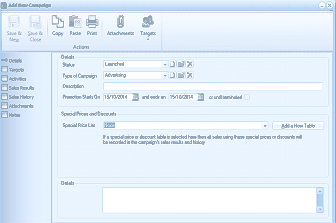
The Add New Campaign dialog window in ABM. The toolbar includes buttons for Save & Close, Save & New, Copy, Paste, Print, Attachments, and Targets. The left panel shows tabs for Details, Activities, Targets, Sales Results, Sales History, Attachments, and Design Email. The main area contains fields for: Status (dropdown showing "Launched" with an edit icon), Type of Campaign (dropdown showing "Advertising" with an edit icon), Description (text input), Promotion Starts On (date field showing "13/10/2014" with an "and ends on" field showing "15/12/2014" and an "or until terminated" checkbox). Below is a "Special Prices and Discounts" section with a Special Price List dropdown and an "Add a New Table" button, with a note explaining that if a special price or discount table is selected, all sales using those prices will be recorded in the campaign's sales results and history. A Details text area is at the bottom for additional narration.
- Status: The status field is a user definable field, and you can add a new Status such as Launched or Completed, by selecting the icon next to this field. Once you have created a list you can then select the status subsequently from the dropdown list. If you wish to delete a status then select the Status and select the icon to remove it. Note: The status should reflect what is happening on the campaign (completed when the campaign is finished), you can the sort and filter on this status.
- Type of Campaign: The campaign type is a user definable field, and you can add a new Type such as Advertising, Mass Mailout, by selecting the icon next to this field. Once you have created a list you can then select the type subsequently from the dropdown list. If you wish to delete a type then select the Type and select the icon to remove it. Note: The Type should reflect how this campaign is being dealt with such as an Advertising Campaign or are you sending out a Mass Mailout or some other type of campaign such as Flyers, you can the sort and filter on this Campaign Type.
- Description: Enter a description for the campaign.
- Promotion Starts On: Enter the start date you wish your promotion to begin.
- Promotion Ends On: Enter the date that the promotion is due to end or select the check box "Until terminated" if it will be ongoing.
- Special Price List: If you want this promotion to be linked to a special price or discount table, then select that price table from the dropdown list. You can also create a new price list if required for this campaign by selecting Add New Table. Note: You will need to save the campaign before you can enter the price/discount details on a new price/discount table.
- Details: You can add a narration which gives a detailed description of the campaign.
- Save and Close or Save New: Once you have entered the main details of the campaign you will need to save these details in order to enter the remaining information.
Targets:
Once you have created the campaign you can associate contacts with the campaign as targets for this campaign. To add Targets select the options from the dropdown list under Targets on the top menu.
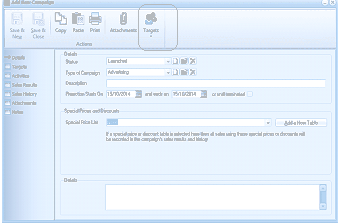
The Add New Campaign dialog window showing the Targets tab selected in the toolbar. The screen appears identical to the previous campaign screen with the same fields (Status: Launched, Type of Campaign: Advertising, Promotion dates, Special Prices and Discounts section, and Details area), but with the Targets button highlighted at the top, indicating that targets management options are accessible from this toolbar button. The left panel tabs and overall layout remain the same as the campaign creation screen.
- Add New Mailing List: You can add the targets by selecting an existing mailing list which will add all the contacts in that mailing list as targets for the campaign. See Mail Manager
- Add New Contact: If you wish to add new a new contact or contacts then select this option. See Visual Control of Contacts
- Include and Existing Contact: If you wish to select a contact that you have setup already in you contacts list then select this option: Note: If you have selected targets from a mailing list you can still add additional contacts by selecting this option.
- Remove Contact from this Campaign: You may have included contacts which may not be appropriate for inclusion in this campaign, in which case you can select that contact and remove the contact from the campaign.
- Do Not Contact This Person: You may wish to include contacts in the campaign but not wish to contact them. Or you may have already contacted this person and they do not wish to be contacted in relation to this campaign again. Note: When you select this option you will be asked if you wish to remove the contact from All Campaigns. If you answer yes then this person will be marked as not contactable on all other campaigns whereas if you select No then they will not be contacted in relation to this campaign only.
Note: Once you have set the targets you can send a mailout to those targets (with the exception of the ones marked Do No Contact) by selecting that campaign in the mailing list section. See Mail Manager
Attachments:
You can add attachments such as a PDF, Word, Excel file etc to associate with the campaign. This file may be a brochure, or price list, or any document relevant to the campaign. To attach the document select attachments, and you can either Drag and Drop the document to the screen, or Browse for the document. You can also scan in any document if required. See Scanning and Attachments Note: You can also attach a document when sending emails to the targets by attaching the document to the email template. See Mail Manager