Processing Purchase Transactions
Processing Purchase Transactions
You can process a purchase transaction for a sub-product using the normal purchase transaction option (see Generating a Purchase Order, Generating a Purchase Delivery Docket ,Generating a Purchase Invoice) either selecting the individual sub-product or using the matrix entry screen by selecting the header product.
To select the matrix data entry form select the product code in the normal way but ensure you select a header product (one that has a + sign next to it). When you select the header product the following screen will appear.
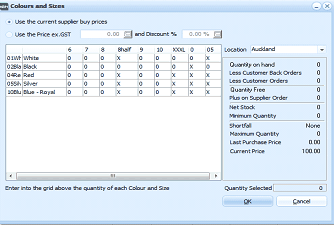
The Colours and Sizes matrix entry dialog for purchase transactions in ABM. The title reads "Colours and Sizes." At the top are options: "Use the current supplier buy prices" and "Use the Price ex.GST" with a price field and "Discount %" field. The matrix grid shows colours as rows (01Whi White, 02Bla Black, 04Re Red, 05Bu Silver) and sizes as columns (0, 05, 06, 7, 8, Shelf, 9, XXXL, 05). Cells contain quantity values or are empty. An X in some cells indicates unavailable combinations. The right panel shows stock information including Quantity on hand, Less Customer Back Orders, Less Customer Orders, Quantity Free, Plus on Supplier Order, Net Stock, Minimum Quantity, ShortFall (None), Current Price (100.00), and Location (Auckland). At the bottom, "Quantity Selected" shows the total and OK/Cancel buttons.
You can can choose to select the supplier price as shown in the purchasing tab under the product, or you can enter the price per unit for the product. This will then attribute that cost to each sub-product selected on the order. to select the number of sub-products required enter the quantity for each combination in the grid. On the right hand side you will see a summary of the sub-product selected. At the bottom it will show the total quantity entered for all combinations. An X appearing against any of the sub-products signifies that this product was not selected initially when setting up the sub-products and is therefore not available to purchase.
When you select OK it will return the descriptions and the quantity for each combination as individual line items.
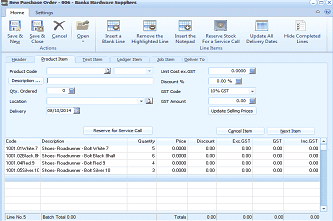
The New Purchase Order screen in ABM showing the result of a matrix entry for structured stock. The title bar reads "New Purchase Order - 006 - Banks Hardware Suppliers." The Product Item tab is active. The lower grid shows multiple line items that were automatically generated from the matrix entry, each with their specific colour and size combinations (e.g., "Y001.05.White 7," "Y001.05.Shoes Roadrunner - Red White 7," "Y001.05.Shoes Roadrunner - Red Black Buff," etc.). Each line shows quantity, price (0.00), and other fields. The batch total at the bottom shows "Line No 5" and running totals.