Product Set-Up
Product Set-Up
To set-up new products for use in Structured Stock select Product from the Business Today list and select New and once you have added the product details as normal (see Setting Up A Product Account) select the Financial tab and select the Sub-Product 1 range and Sub-Product 2 range (if applicable). Note: the Sub-Products 2 range will be disabled until the sub-products 1 range is selected.
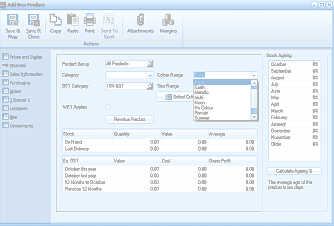
The Add New Product screen in ABM showing the Financial tab for structured stock setup. The toolbar includes Save & Close, Save & New, Copy, Paste, Print, Send To Excel, Attachments, and Margins buttons. The left panel shows navigation sections: Product Details, Sales Information, Transaction History, Consignment, and Quantities. The Financial tab is active, showing fields for Product Group (All Products), Category, GST Category (10% GST), WET Applies checkbox, and importantly the Sub-Product configuration section with dropdown fields for selecting "Colour Range" and "Size Range" with options like Clothing, Shorts, Footwear, and Personal visible in one dropdown. A "Review Products" button is shown. Below are Stock, Quantity, Value, and Average columns with fields for On Hand, Last Delivery values, and financial fields for Ex GST values including October this Year, October last year, 12 Months to October, and Previous 12 Months. A "Calculate Ageing" section with a "Stock Ageing" heading is visible on the right side.
Once the ranges are selected you can then select Select Sub- Products1, Sub-Products 2 and Barcodes **(Example Colours,Sizes and Barcodes by Grid) **Once the selection is made a list of the products that are available for selection will appear in a matrix format.
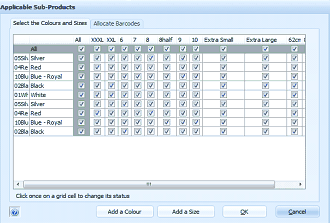
The Applicable Sub-Products dialog with the "Select the Colours and Sizes" tab active. The dialog shows a matrix grid with colour rows (05Si Silver, 04Re Red, 10Bu Blue - Black, 01Wh White, 05Sh Silver, 05Si River, Red, 05Bu Blue - Royal, 02Ba Black) and size columns (All, XXXL, XXL, 6, 7, 8, Shelf, 9, Extra Small, Extra Large, 62cm). Checkboxes in each cell allow selecting or deselecting specific colour/size combinations. The "All" column allows selecting all sizes for a given colour at once. Most combinations are checked. An instruction at the bottom reads "Click once on a grid cell to change its status." Buttons include "Add a Colour," "Add a Size," OK, and Cancel.
You can select or unselect any product combination by selecting or unselecting the check box for each combination. Alternatively you can select all products in the range by selecting the check box for each column or row. You can change the order in which the sub products appear by dargging and dropping the columns and rows.
You can allocate barcodes by selecting the Allocate Barcodes tab. When you select this tab the screen will show a ? against each combination. You can then choose the type of barcode you wish to use from the drop down list. The choices are EAN, UPC or Other. When you have made the selection of the barcode type, enter the starting sequence for the barcode and select the order in which the selection will be made (by Sub-Product 1 initially and then by Sub-Product 2 or visa versa). When you have completed the entries select Allocate Barcodes to Sub- Products. This will then allocate the barcode for each of the combinations automatically. Alternatively you can enter the barcodes manually.
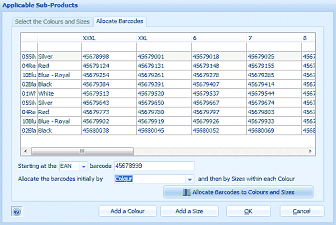
The Applicable Sub-Products dialog with the "Allocate Barcodes" tab active. The dialog displays a matrix grid with colour rows and size columns, where each cell contains a barcode number (e.g., 45678998, 45679001, 45679118, etc.). The barcodes are systematically assigned across the colour/size combinations. At the bottom, configuration fields show: "Starting at the [EAN] barcode [45678939]" and "Allocate the barcodes initially by [Colour] and then by [Sizes] within each Colour." A prominent "Allocate Barcodes to Sub-Products" button is centered. Additional buttons include "Add a Colour," "Add a Size," OK, and Cancel.
When you select OK, ABM will set up a Header Product and all the relevant sub-products.