Introduction
Introduction
Structured Stock allows a two dimensional set up of products, and is used by companies who sell products in various coulours or sizes. The structured stock will allow users to purchase and sell products using a matrix style entry system.
Products can be set-up with either one or two dimensions. Example: The product can be set-up using both a size and colour matrix. Or if size is only required then the user will only need to set up one dimension.
Once sub-products are set-up, users can then add product types and ranges to the sub-products, such as varying sizes of Small, Medium and Large and ranges of Shirts, Blouses etc.
When a product is created it will have a header product and sub-products for the first and second dimension. The dimensions or sub products are user defined.
Configuring Structured Stock
To configure Structured stock and set up the sub products select Tools\Options and Select Inventory. Select the option Configure Sub-Products
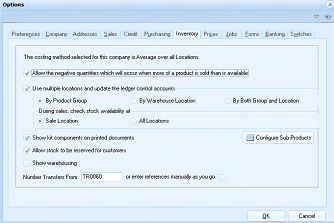
The ABM Options dialog with the Inventory tab selected. The dialog shows costing method settings, checkboxes for negative quantities, multiple locations, stock availability, and importantly the "Configure Sub Products" button which is used to set up structured stock. Additional options for stock reservations, warehousing, and transfer numbering are visible. OK and Cancel buttons are at the bottom.
When Sub-Products is selected this will open the following screen.
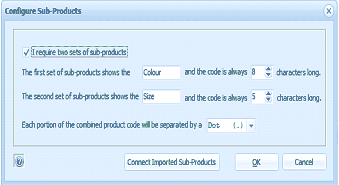
The Configure Sub-Products dialog box in ABM. A checkbox at the top reads "I require two sets of sub-products" (checked). The first line reads: "The first set of sub-products shows the [Colour] and the code is always [8] characters long." The second line reads: "The second set of sub-products shows the [Size] and the code is always [5] characters long." Below is the separator setting: "Each portion of the combined product code will be separated by a [Dot (.)]" with a dropdown showing the dot option. Buttons at the bottom include "Connect Imported Sub-Products," OK, and Cancel.
Steps to set up Sub-Products
- The first step is to determine if you wish to have one or two sub-products. You can increment or decrement the number to a maximum of two sub-products.
- The next step is to define the title and the number of characters to use for the first sub-product. Note: the number of characters can be up 10 characters.
- The next step is to define the title and number of characters for the second sub-product. Note: the number of characters can be up 10 characters and need not be the same as sub-product 1.
- Once the sub-products have been defined you need to decide what separator to use between the code for the product and both sub-products. This can be a Dot (.), Dash (-), Plus Sign (+), Slash sign (/) or you can select None for no separation.
Adding Sub-Products and Ranges
Once you have defined the title for the sub-products, these sub-products will appear in the Business Today list under Products
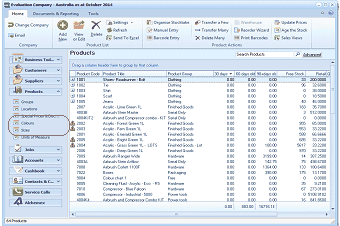
The Products list view in ABM showing the navigation tree on the left with sub-product categories visible. Under the Products folder, new entries for structured stock sub-products are shown, including "Colours/Properties" and "Sizes." The main product grid is visible on the right showing standard product listings with columns for Product Code, Product Title, Product Group, and other fields. A dropdown menu is expanded showing sub-product navigation options.
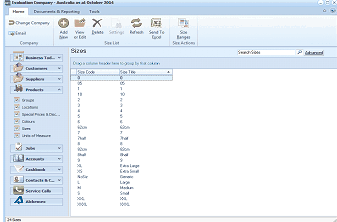
The Sizes sub-product list view in ABM. The left navigation panel shows Products expanded with "Sizes" selected. The main area displays a "Sizes" grid with columns for Size Code and Size Title. The list shows multiple size entries including numbered sizes (1 through 12) and named sizes like XXS, XS, Small, Medium, Large, Extra Large, Extra Small, XXL, and XXXL. The toolbar shows buttons for Add New, View, Delete, Settings, Refresh, Send To Excel, and Size Ranges. A "Search Sizes" bar and Advanced button are at the top right.
To set up the sub-products select either sub-product 1 or Sub-product 2 from the list and select New. This will open the following screen.
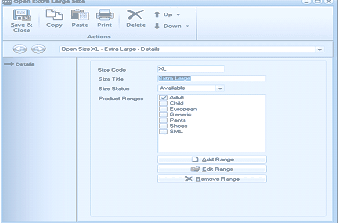
The Open Size XL - Extra Large - Details screen in ABM. The toolbar includes Save & Close, Copy, Paste, Print, Delete, Up, and Down buttons. The Details tab is active showing fields for Size Code (XL), Size Title (Extra Large), Size Status (Available dropdown), and Product Ranges with checkboxes for available ranges including Child, Footwear, Dresses, Shirts, and Socks. Some ranges are checked. Buttons for Add Range, Edit Range, and Remove Range appear on the right side.
You can enter the Title of the sub-product such as Large. Once you added the description you can add the ranges that are applicable to this product from the list shown.
To add more ranges select Add Range and enter the title of the ranges you require.
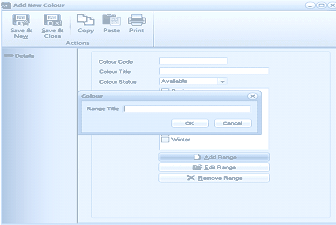
The Add New Colour screen in ABM. The toolbar includes Save & New, Save & Close, Copy, Paste, and Print buttons. The Details section shows fields for Colour Code, Colour Title, and Colour Status (Available dropdown). Below is a Colour section with a "Range Title" input field and an inline dialog showing OK and Cancel buttons for adding a new range. A "Website" checkbox is visible, along with buttons for Add Range, Edit Range, and Remove Range.
You can change the title of the ranges by selecting that range and selecting Edit Range or you can delete the specified range by selecting Delete Range.