Viewing Structured Stock Products
Viewing Structured Stock Products
Viewing Header Products and Sub-Products.
When you select the product list, you will see the header products with a plus sign (+) next to it. This signifies that it is a header product, and will contain a summary of all the sub-products such as Free Stock, Quantity on Hand and value.
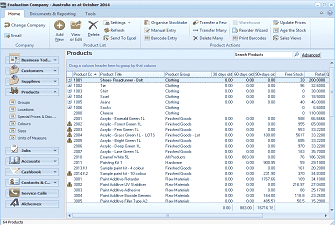
The Products list view in ABM showing header products with a plus sign (+) for structured stock items. The grid displays products with columns for Product Code, Product Title, Product Group, and additional columns. Header products (structured stock) are identifiable by the + symbol next to them, such as "Shoes Roadrunner" entries. Other standard products like "Frieze Polyethene," "Decor - Emerald Green 1L," and "Acrylic" items are also listed. Product groups shown include Paints, Clothing, and others. The + sign indicates these products contain sub-products that can be expanded to view individual colour/size combinations.
To see the full list of all products then select the + sign and this will expand all the products. To see the summary again just select the minus sign (-)
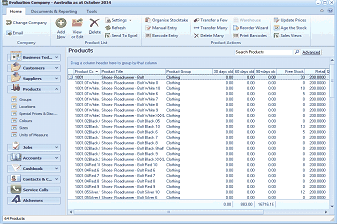
The Products list view in ABM with structured stock products expanded. The + signs have been clicked to reveal all sub-products underneath header products. The expanded view shows individual colour/size combinations such as "Y001.01White.Shoes Roadrunner - Red White 16," "Y001.02Shell.Shoes Roadrunner - Red Shell XXXL," and similar variations. Each sub-product line shows its full code combining the base product code, colour code, and size code. The grid columns show Product Code, Product Title, Product Group (Clothing), and stock values. The expanded list demonstrates how the structured stock system breaks down a single header product into many sub-product SKUs.
Product Summary
To see a summary of all the sub-products select the header product and select the Sub-Products tab (example Coulours and Sizes)
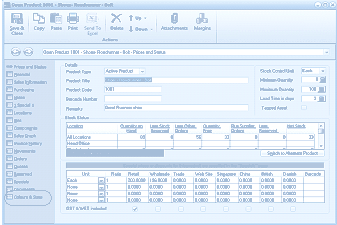
The Open Product screen for a structured stock header product "Shoes Roadrunner - Red" in ABM. The title shows "Open Product 1001 - Shoes Roadrunner - Red - Prices and Sizes." The toolbar includes Save & Close, Copy, Paste, Print, and other standard buttons. The left panel shows navigation sections including Prices and Styles, Product Details, Sales Information, Components, Sales graphs, and others. The main area shows the Details tab with fields for Product Type (Active Product), Product Code (Y001), Product Title, Barcode Number, Stock Status section, and a grid displaying sub-product data. The grid shows columns for Colour (White, Prune, Red, Silver, Blue-Royal, Black), sizes (XXXL, 05, 06, 7, 8, 9), and barcode information. A "Switch to Maximum Product" link is visible.
This will allow you to view the following for all sub products for all locations or individual locations
- Quantity on hand for each sub-product.
- Customer Orders for each sub-product
- Free Stock for each sub-product
- Suppler orders for each sub-product
- Sales for the current reporting period. Note: This will show for all locations only and not individual locations.
- Sales for the twelve months to the current reporting period.** Note:** This will show for all locations only and not individual locations.
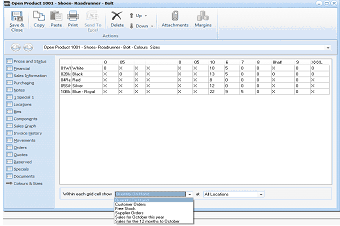
The Open Product screen showing the "Colours & Sizes" tab for the structured stock product 1001 - Shoes Roadrunner - Red. The toolbar shows Save & Close, Close, Delete, Down, Attachments, and Margins buttons. The left panel shows navigation options including Colours & Sizes (selected). The main area displays a matrix grid with colour rows (01wh White, 02Bla Black, 05Si Silver, 10Bu Blue - Royal) and size columns (XX, 05, and others). A dropdown at the bottom labeled "Within each grid cell show" has options including Customer Orders, Supplier Orders, Free Stock, Sales to the current period, and Sales to the 12 months to October, allowing the user to toggle between different data views. A location dropdown shows "All Locations" with options to filter by specific location.