Sending Reports to a Queue
Sending Reports to a Queue
If you do not want to print a report immediately, you can send it to a queue to be printed later. To send the report to a queue select reports as normal (see Running Reports ) and select the destination of the report.
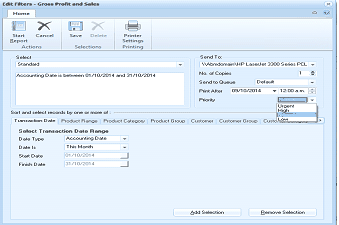
ABM report filter/configuration screen titled "Edit Filters - Gross Profit and Sales." The toolbar shows buttons for Start Report, Cancel, Save, Delete, Printer Settings, and Printing under the Home tab. On the right side are the output settings: Send To (showing a network printer path "\VAbmdomain\HP LaserJet 3390 Series PCL..."), No. of Copies, Send to Queue dropdown set to "Default," Print After date/time field showing "09/10/2014" and "12:00 a.m.", and Priority dropdown showing "Urgent" (with options Urgent, High, Normal, Low visible). Tabs at the bottom of the filter section include Selections and Printing. The Selections tab shows filter criteria for "Accounting Date is between 01/10/2014 and 21/10/2014" and sorting options with tabs for Transaction Date, Product Range, Product Category, Product Group, Customer, Customer Group, and Current Group.
To send a report to a queue, you need to follow the steps below
- Send To Queue : Select the queue from the drop down list (the list will display all queues that have been setup).
- **Print After: **Select time you wish these documents to be processed.
- Priority: You can set a priority for the printing of these forms. Therefore, if you set the priority to Urgent, then when the print time is reached, the Document Server will print all documents with the highest priority first, irrespective of when other documents have been added to the queue.