Installing and Setting Up Document Server
Installing and Setting Up Document Server
To install ABM Document Server select Document and Reporting from the main menu bar and select Document Server Manager.

ABM menu ribbon bar showing the "Documents & Reporting" and "Tools" menu sections. Under "Documents & Reporting," visible buttons include Management Reports, Sales Reporting, Standard Reporting, Print/Send Documents, Customer Statements, and Printer And Forms Settings. The Document Server Manager button is highlighted/visible in the ribbon. This shows the navigation path to access the Document Server Manager from the main application menu.
When you select this option for the first time a message will appear as follows
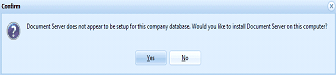
A "Confirm" dialog box with an information icon. The message reads: "Document Server does not appear to be setup for this company database. Would you like to install Document Server on this computer?" Two buttons are shown: Yes and No.
Select Yes to set up the details for this database.
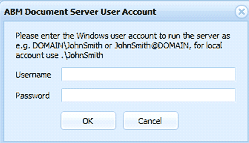
ABM "ABM Document Server User Account" dialog box. The instruction reads: "Please enter the Windows user account to run the server as e.g. DOMAIN\JohnSmith or JohnSmith@DOMAIN, for local account use .\JohnSmith." Two fields are shown: Username (text field) and Password (text field). OK and Cancel buttons are at the bottom.
Enter the username (Note: this will probably be the same name you use to log onto you computer)** Example:** MyDomain\JohnSmith or you can use .\JohnSmith
Password - enter the appropriate password relating to the username entered.
Once you have this information entered, ABM Document Server will be automatically set up with a default queue called Default.
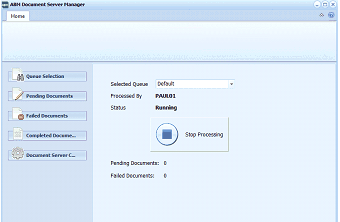
ABM "ABM Document Server Manager" window showing the Queue Selection screen. The left sidebar has navigation buttons: Queue Selection (currently selected), Pending Documents, Failed Documents, Completed Documents, and Document Server Control. The main area shows: Selected Queue dropdown set to "Default," Processed By field showing "PAUL01," and Status showing "Running" with a "Stop Processing" button. Below are summary counts: Pending Documents: 0 and Failed Documents: 0.
Note: ensure that the Status is set to Running, otherwise select Start Processing in order to ensure the documents sent to this queue will be processed according to the criteria set. See Managing Queues