Fax and Email Server
Fax and Email Server
You can set up you system to determine how your faxes and emails should be sent from ABM. In order to set up your fax and email server, select either Document Server or Reports
Set up within Document Server
Select Document Server and select Document Server Control. one the control screen opens you can then select the option Setup.
Set up from Reports:
Select Reports from any module and select Report Tools. From the dropdown list you can select Set Fax and E-mail Server.
From either option the following screen will appear.
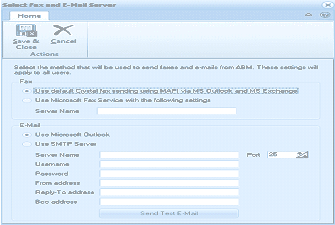
ABM "Select Fax and E-Mail Server" dialog window. The toolbar shows Home tab with Save & Close and Cancel buttons under Actions. The dialog instructs: "Select the method that will be used to send faxes and e-mails from ABM. These settings will apply to all users." The Fax section has two radio button options: "Use default Crystal fax sending using MAPI via MS Outlook and MS Exchange" and "Use Microsoft Fax Service with the following settings" with a Server Name text field. The E-Mail section has two options: "Use Microsoft Outlook" and "Use SMTP Server" with fields for Server Name, Port (showing 25), Username, Password, From address, Reply To address, and Bcc address. A "Send Test E-Mail" button is at the bottom.
**Fax: **You can choose the default option of using Crystal to send the fax using MAPI via MS Outlook or MS Exchange or you can enter the Server Name for you Fax if you are using Microsoft Fax Services.
**Email: **You can use the default method of Outlook to send your emails or you can set up details of your SMTP server. Note: If you are using SMTP you do not need to have Outlook on your Workstation.
to set up SMTP you will need to enter the following information.
- Server Name: This is the server that is handling you SMTP at present. The smtp maybe you domain name prefixed by the word "smtp" such as smtp.mydomain.com. However, you may need to check this with your ISP provider. You can also check this setting by selecting Outlook, and selecting Tools and Account Settings. By selecting an email account and selecting change, this will show the Outgoing Mail Server you are using at the moment.
- Username: You need to enter the username associated with you email address. This will usually be your email address.
- Password: You need to enter the password that is used to connect to your SMTP server.
- From Address: Enter the email address which will display who the email is from, such as accounts@mydomain.com
- Reply to Address: This is an optional field and will allow you to specify an address where replies to the emails should be sent.
- Bcc address: This is an optional field which you can enter so that a copy of all emails go to a certain email address such as accounts@mydomain.com