Managing Document Server
Managing Document Server
To manage ABM Document Server, select Document and Printing from the main menu bar, and select Document Server Manager

ABM menu ribbon bar showing the "Documents & Reporting" and "Tools" menu sections. Under "Documents & Reporting," visible buttons include Management Reports, Sales Reporting, Standard Reporting, Print/Send Documents, Customer Statements, and Printer And Forms Settings. The Document Server Manager button is highlighted/visible in the ribbon, showing the navigation path to access Document Server Manager from the main application menu.
This will open the Document Server Manager Screen
Queue Selection:
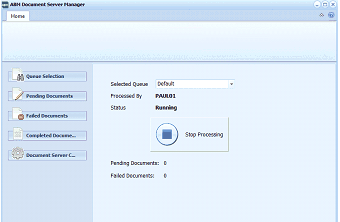
ABM "ABM Document Server Manager" window showing the Queue Selection screen. The left sidebar has navigation buttons: Queue Selection (currently selected), Pending Documents, Failed Documents, Completed Documents, and Document Server Control. The main area shows: Selected Queue dropdown set to "Default," Processed By field showing "PAUL01," and Status showing "Running" with a "Stop Processing" button. Below are summary counts: Pending Documents: 0 and Failed Documents: 0.
On the Queue selection screen you will see the summary for each queue. You can change the queue by selecting a different queue from the drop down list. The queue selection screen will also list the computer that is entrusted to process this queue (if you have more than one document server set up), and will show the status. If the status for any queue shows "Stopped", you can select Start Processing to start the process. Alternatively you can stop the processing by selecting "Stop Processing". Note: if the status is "Stopped" then no documents will be processed from this queue until the queue is "Running."
**Pending Documents: **
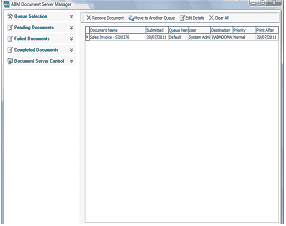
ABM Document Server Manager window showing the "Pending Documents" screen. The left sidebar shows navigation buttons: Queue Selection, Pending Documents (currently selected, highlighted), Failed Documents, Completed Documents, and Document Server Control. The toolbar at the top shows action buttons: Remove Document, Move to Another Queue, Edit Details, and Clear All. The main grid displays pending documents with columns: Document Name, Submitted By, Queue, Date/Time Sent, Destination, Priority, and Print After. Two entries are visible showing documents like "Sales Invoice - S00534" submitted by a System Admin user with Default queue settings and Normal priority.
This will list all documents that have not yet been processed. You can manage these documents by selecting the following options:
- Remove Document: If you do not wish to have a particular document processed, you can select that document from the list and select Remove Document.
- Move to Another Queue: If you want the document to be processed by a different queue (so that it will be processed with similar documents), you can select the document, and select Move to Another Queue and select the queue from the drop down list.
- Edit Details: If you want to make a change to the document details, such as Priority, or the Date and Time to be processed, you can select the document and select Edit Details. Note: you can also change the queue when Editing the Details.
- Clear All: this will remove all the documents from the pending list.
Failed Documents:
This will list all documents that have failed to be processed. The failure will show email documents that did not have an email address (or incorrectly formatted), or documents sent to an incorrect printer (probably set to a local printer which the Document Server does not recognise). Note: ABM Document Server will not be able to determine if the email address was incorrect and rejected accordingly, or if there was an error with the printer. Such documents will be treated as complete since they have been sent to the printer queue, or emailed, and accordingly will not appear in the failed document list.
Completed Documents
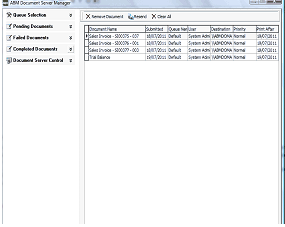
ABM Document Server Manager window showing the "Completed Documents" screen. The left sidebar shows navigation buttons: Queue Selection, Pending Documents, Failed Documents, Completed Documents (currently selected, highlighted with checkmark), and Document Server Control. The toolbar shows action buttons: Resend Document, Resend, and Clear All. The main grid displays completed documents with columns: Document Name, Submitted By, Queue, Date/Time Sent, Destination, Priority, and Print After. Several entries are visible showing processed documents like "Sales Invoice - S00035" entries, submitted by System Admin users with Default queue settings and Normal priority, along with processing timestamps.
This will list all documents that have been processed
You can resend any document to be processed again. This will transfer the document to the Pending List for the Queue that was initially selected. However, the queue can be changed by editing the document in the Pending List if required. Note: The date shown in the Print After will be displayed as 31/12/1899, this is to enable the document to be printed immediately. If the document is to be printed at a later time then this date needs to be changed.