Duplicating Companies
Duplicating Companies
You may wish to duplicate your company database for training or other reasons.
To duplicate a company database:
-
Select the Company screen:
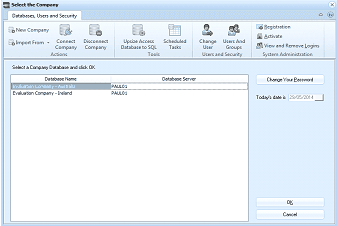
The "Select the Company" screen in ABM. The toolbar at the top shows buttons organized into two groups: "Databases, Users and Security" (with buttons for New Company, Import From, Connect Company, Disconnect Company, Upsize Access Database to SQL, Scheduled Tasks, Change User, Edit Groups) and "System Administration" (with buttons for Registration, Activate, and View and Remove Logins). Below is a table with columns for Database Name and Database Server, listing two companies: an entry and "Evaluation Company - Ireland" with server "PAUL01." A "Change View Password" link appears to the right, and "Today's date" is shown. OK and Cancel buttons are at the bottom.
Select the Company screen
-
Connect to the same company again, i.e. Evaluation Company. A message tells you the company is already connected, and asks if you wish to duplicate the company. Click Yes.
-
Note: Ensure you backup, and copy the database before you make this selection, as this will change the identification of the database. Therefore, ensure that it is the copy of the database that you are selecting (tip rename the database to something which indicates that it is a copy). This procedure will not copy the database for you.
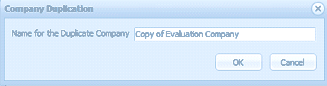
A small "Company Duplication" dialog window with a single field labeled "Name for the Duplicate Company" containing the text "Copy of Evaluation Company." OK and Cancel buttons are to the right.
-
In the Company Duplication screen, you have the option to rename the duplicate company.
-
When you have finished, click OK.
The duplicate company is created and in the company database list.