Upsizing Access to SQL Server Wizard
Upsizing Access to SQL Server Wizard
Existing Access company data can be upsized to an SQL server database using the Upsize Wizard.
-
Select the database you wish to upsize from the company selection screen.
-
From the Select the Company menu bar, choose Database Tools and Upsize an Access database to SQL Server.
-
If you choose, for example, Evaluation Company, then this will appear as the company name under the database section. You should change the name on the company to differentiate it from the Access database, such as EvaluationCompanySQL. Note this will not change the company name that appears on your letterhead; it will only change the database file name.
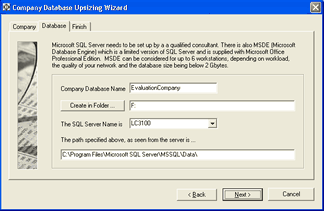
The Company Database Upsizing Wizard dialog window with three tabs: Company, Database, and Finish. The Company tab is currently active and displays an informational message explaining that Microsoft SQL Server needs to be set up by a qualified consultant, mentioning MSDE (Microsoft Database Engine) as a limited version of SQL Server supplied with Microsoft Office Professional Edition, noting that MSDE can be considered for up to 6 workstations depending on workload, network quality, and database size being below 2 GBytes. Below the message are fields for: Company Database Name (showing "EvaluationCompany"), Create in Folder (with a browse button), The SQL Server Name is (dropdown showing "LC3100"), and a read-only field showing the path as seen from the server: "C:\Program Files\Microsoft SQL Server\MSSQL\Data". Back, Next, and Cancel buttons are at the bottom.
Company Database Upsizing Wizard
- Select the folder where you wish to place the new database, and then select the SQL server followed by the path as seen on the SQL server. Note this is the path the server will recognise and not a mapped network path.
- Select Next and Upsize Now.
- When upsizing is complete, the new SQL database will appear on the company list.