Checking and Clearing Logged in Users
Checking and Clearing Logged in Users
Checking and Clearing Logged in Users.
The System Manager can check what users are logged onto ABM by selecting Log Ins at the main users log in screen.
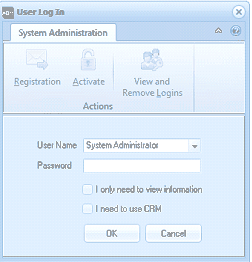
The User Log In dialog window in ABM. At the top is a "System Administration" toolbar with buttons for Registration, Activate, and "View and Remove Logins." Below is an "Actions" section with fields for User Name (dropdown showing "System Administrator"), Password (text input), and two checkboxes: "I only need to view information" and "I need to use CRM." OK and Cancel buttons are at the bottom.
A list of all uses will appear showing if the user is logged in with Full access or Read Only access.
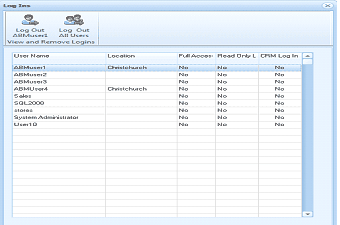
The Log Ins screen showing a list of all users and their login status. At the top are toolbar buttons for "Log Out ABMuser1," "Log Out All Users," and "View and Remove Logins." The table displays columns for User Name, Location, Full Access, Read Only, and CRM Log In, each showing "No" or "Yes" status. Users listed include ABMuser1 (Location: Christchurch, showing No for all columns), ABMuser2, ABMuser3, ABMUser4 (Location: Christchurch), Sales, SQL2000, stereo, System Administrator, and user10, most showing "No" across all access columns.
The System Manager can log out an individual user by selecting that user and selecting Log Out User. Alternatively, all users can be logged out by selecting the option Log Out All Users. This will then clear all users logged onto ABM. Before logging out a user, or all users, ensure that that user is not currently using ABM as this action will prohibit that user from processing any transaction when logged out.