Importing and Exporting Existing Company Data
Importing and Exporting Existing Company Data
ABM allows you to import and export existing customers, suppliers, products and jobs from companies that you have previously set up.
Note: The values of the data to export, i.e. format, range, must correspond with the values of the data to import.
To export data from an existing company:
- Select Change Company and select the company from where you want to export the data.
- Select the type of data you want to export, i.e. Suppliers, by selecting the appropriate folder.
- In the company menu bar, select Tools and Export. The Export Data screen will appear:
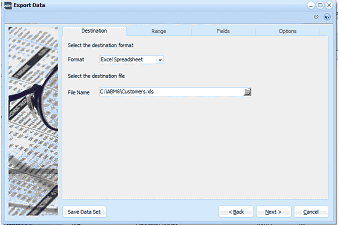
The Export Data dialog window with tabs across the top: Destination, Range, Fields, and Options. The Destination tab is currently active. It shows "Select the destination format" with a Format dropdown set to "Excel Spreadsheet," and "Select the destination file" with a File Name field showing "C:\ABM98\Customers.xls" and a browse button. A "Save Data Set" button is at the bottom left, and Back, Next, and Cancel buttons are at the bottom right.
Export Data for Customers
Destination
-
Format: Select the destination format of the data from the drop-down list. This must be the same as the source format you select when importing the data. If unsure, "Comma-separated values" is the most common format used. If you choose the Excel format, then there is an option to export the column headings. This is useful when re-importing this file, as the headings will then be picked up automatically without further intervention. Note it is essential when exporting information that you wish to re-import, to select fields that are not marked with *, which denotes that those fields cannot be imported.
-
File Name: Select the name of the file to be exported. This field automatically displays the folder you originally selected, i.e. Suppliers. When you export the file, e.g. Suppliers.csv, the file is saved in the path location you have indicated, i.e. C:\Accounts.
Range Select the range of items to export by clicking the drop-down lists.
**Fields **Select the fields to export by clicking the title of the field, e.g. Supplier Group, on the left-hand side, and then the ">" button. If you want to select all fields, click the "'" button.
Options
-
Export Options: Select the Date Format from the drop-down list. When you have made the appropriate selections for exporting, click Finish to complete the export. A message appears stating the export is successfully completed.
To import data from an existing company:
-
Format: Select the source format of the data from the drop-down list. This must be the same as the destination format you selected when exporting. If unsure, "Comma-separated values" is the most common format used.
-
File Name: Select the name of the file to be imported. This field automatically displays the folder you originally selected, i.e. Suppliers.
Fields Select the fields to import by clicking the title of the field, e.g. Supplier Group, on the left-hand side, and then the ">" button. If you want to select all fields, click the "'" button.
Options
-
Import Mode: Select from the drop-down list the form of import, i.e. "Import New Records Only".
-
Default Group: Click the button to select the default group for the imported data.
-
Default Tax Category: Click the button to select the default tax category from the list.
When you have made the appropriate selections for importing, click Finish to complete the import. A message appears stating the import is successfully completed.