Data Conversion
Data Conversion
Existing company data can be seamlessly converted to Advanced Business Manager.
-
In the main ABM screen, select Change Company from the menu bar.
-
From the Select the Company menu bar, choose Import from, and a drop-down list will show you the available database types that can be converted.
-
An Upgrade Wizard will appear for the appropriate package:
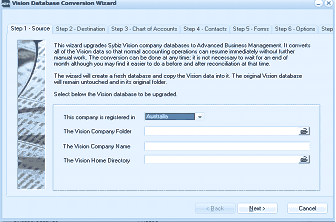
The Vision Database Conversion Wizard dialog window showing Step 1 - Source, with tabs across the top for Step 1 through Step 6 (Source, Destination, Chart of Accounts, Contacts, Forms, Options) and a Finish tab. The main area displays an explanatory message stating that the wizard upgrades a Vision company database to Advanced Business Manager, that it converts all Vision data so normal accounting operations can resume immediately without further manual work, that the conversion can be done at any time (though end of month is recommended for easier reconciliation), and that a fresh database will be created while the original Vision database remains untouched. Below is a dropdown to select the country where the company is registered (set to "Australia"), and fields for The Vision Company Folder, The Vision Company Name, and The Vision Home Directory. Next and Cancel buttons are at the bottom.
Upgrade Wizard
The Upgrade Wizard upgrades the company databases to Advanced Business Manager. Normal operations can resume immediately after the conversion. A new database is created in ABM and the original database will remain untouched an in its original folder.
- Follow the steps outlined in the Upgrade Wizard.
- When you have completed the appropriate fields in the Upgrade Wizard, click Next in Step 6.
- Your upgrade is complete.