Printing Documents
Printing Documents
If you have more than one Form Type set up you can select all forms when printing or select an individual form or a combination.
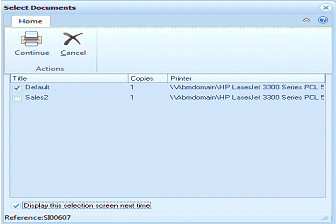
ABM "Select Documents" dialog window. The toolbar shows Home tab with Continue and Cancel buttons under Actions. Below is a grid with columns: Title, Copies, and Printer. Two document entries are listed: "Default" with 1 copy going to "\Abmdomain\HP LaserJet 3390 Series PCL 6" (with a checkmark), and "Sales2" with 1 copy going to the same printer. At the bottom is a checkbox labeled "Display this selection screen next time" (checked) and a reference number "Reference:S00607."
Document Selection Screen
Selecting Documents
When you select the Print when Saving option, the Select Documents screen will appear, and allow you to select all documents, or a particular document. If you do not wish to include a document for printing, double click on that document, which will then have an X associated with it, and that document will not be included for printing. When you have made your selection, select Continue to print your documents.
Display this Screen Next Time: If you unselect this option, then the Select Documents screen will not appear the next time you produce this transaction type. Example: If you are printing sales invoices and you do not wish to have the selection screen appear when printing, then unselect this option, and the next time you print a sales invoice it will print the documents you have selected without requiring your confirmation. When you disable this option the following prompt will appear
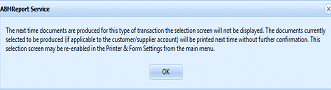
ABM "ABHReport Service" confirmation dialog box with an information icon. The message reads: "The next time documents are produced for this type of transaction the selection screen will not be displayed. The documents currently selected to be produced (if applicable to the customer/supplier account) will be printed next time without further confirmation. This selection screen may be re-enabled in the Printer & Form Settings from the main menu." An OK button is shown at the bottom.
Note you can turn this option back on again by selecting Printer and Forms settings and selecting the particular form see Maintaining Existing Documents