Creating a New Document
Creating a New Document
You can create new document types such as additional Sales Invoice forms and define how these forms are handled by selecting Printer & Forms Settings and selecting New Document. This will open the document Maintenance screen.
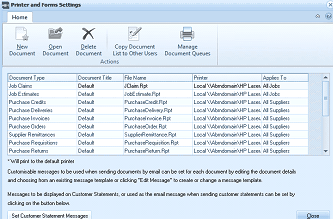
ABM Printer and Forms Settings screen. The toolbar at the top shows buttons for New Document, Open Document, Delete Document, Copy Document List to Other Users, and Manage Document Queues under "Actions." Below is a grid listing document types with columns: Document Type, Document Title, File Name, Printer, and Applies To. Listed documents include Job Claims, Job Estimates, Purchase Credits, Purchase Deliveries, Purchase Invoices, Purchase Orders, Supplier Remittances, Purchase Requisitions, and Purchase Returns. Each row shows details like "Default" for Document Title, the form file name (e.g., "JClaim.Rpt"), printer path (e.g., "Local \VAbmdomain\HP LaserJet..."), and "All Suppliers" or "All Jobs" for the Applies To column. A note at the bottom reads "* Will print to the default printer." Additional options are shown for customizable messages and Set Customer Statement Messages button.
Printer & Forms Settings screen.
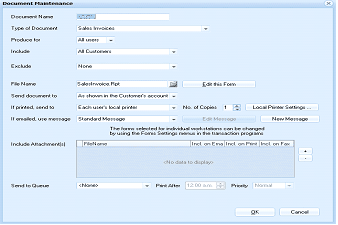
ABM Document Maintenance dialog box for creating or editing a document. Fields visible include: Document Name (text field), Type of Document (dropdown showing "Sales Invoices"), Produce For (dropdown showing "All users"), Include (dropdown showing "All Customers"), Exclude (dropdown showing "None"), File Name (showing "SalesInvoice.Rpt" with an "Edit this Form" button), Send document to (dropdown showing "As shown in the Customer's account"), If printed send to ("Each user's local printer" with "No. of Copies: 1" and "Local Printer Settings" button), If emailed use message (dropdown showing "Standard Message" with "Edit Message" and "New Message" buttons). A notice states forms selected for individual workstations can be changed via Forms Settings. An Include Attachments section with FileName column and checkboxes for Incl. on Email, Incl. on Print, Incl. on Fax. At the bottom: Send to Queue set to "None", Print After time field, and Priority dropdown. OK and Cancel buttons are at the bottom right.
Document Maintenance screen.
Steps in Creating a New Document:
-
Document Name: Enter a name which identifies the type of document you are setting up. Example: Retail Sales Invoice.
-
Type of Document: Select the type of document you wish to create such as Sales Invoice.
-
Produce For: You can create the document which only applies to your user name, or for all other users.
-
Include: You can set this document to include only a specified criteria. Example if you wish to have this document printed only for Retail Customers then select Specified Groups from the drop down list. This display an option to select a Group or Groups to include when printing this document. The options available on the drop down list are Specified Customers/suppliers, Specified Customer/Supplier Groups and Specified Customer/Supplier Categories. Note: The default is All Customer/Suppliers.
-
Exclude: You can set this document to exclude specified criteria. Example if you wish to have this document printed for All Customer excluding Retail Customers then select Specified Groups from the drop down list. This will display an option to select a Group or Groups to exclude when printing this document. The options available on the drop down list are Specified Customers/suppliers, Specified Customer/Supplier Groups and Specified Customer/Supplier Categories. Note: The default is None
-
Applies to: You set the criteria for selecting this document when printing. The options available are:
-
All Customers, Suppliers or Jobs : The document will be available for all customers.
-
A Specified Customer, Supplier or Job Only: If you wish to create a form specifically for one customer or a specified supplier, then select this option and select the required customer, supplier or job. Example: If you set up a sales invoice form specifically for one customer then it will select this form when you process a sales invoice to this customer, as opposed to the default form.
-
A Specified Group: You can restrict the printing of this document to a specific group. Select either Customer, Supplier Group or Job Group depending on the form type selected. Example: If the form applies only to Retail Customers, then select Customer Group, and select the Group Retail. If you have created a sales form then each time you process a sales invoice to a customer belonging to that group, that particular form will be used.
-
A Specific Category: You can select the form to be selected when a transaction is processed and the customer, supplier or job is associated with a particular category. Example: If you wish to use a particular sales form for customers in Category Foreign, then select that category and this document would only be used if that customer meets that criteria.
-
Form Name: Select the required form to match the criteria entered.
-
Send Document To: You can select how you want the document to be sent as follows:
-
As Shown in the Customer, Supplier or Job Account. When you were setting up a customer account you would have specified how various documents were to be printed such as On Paper, By Email etc (see Customer Account - Delivery Details), the document will then be sent in accordance to this criteria.
-
Always Print to the Printer Below. You can specify a printer so that these documents will always go to this printer. Example: If you wish to have delivery dockets printed in the stores department, then select that specific printer.
-
Always E-mail to:You can enter an E-mail address so that this document is always sent by E-mail to the specified E-mail address.
-
Always E-Mail to the Customer or Supplier account. This will always E-mail the document to the accounts contact set in you customer or supplier contacts list.
-
If Printed Send To: You can select either a local printer, or a shared network printer. Select either of these options, and then select the required printer.
-
Number of Copies: You can select the number of copies to be printed each time this form is selected. **Note: **If you select Supplier Cheques/Remittance Advices as your type of document, you may then select the number of lines to be printed on each remittance page.
-
Display Form Selection when Printing: If you have more than one Form Type, then an option will be visible allowing you to decide if you wish to have these forms displayed, and available for selection, when you are printing a document.