Setup and Maintenance
Setup and Maintenance
With Warehouse Management you can build a hierarchal structure of each warehouse with multiple aisles, levels, etc. and an area for goods not yet assigned to the Goods In area.
To manage your warehouse select Products from the navigation bar and select Warehouse from the menu.
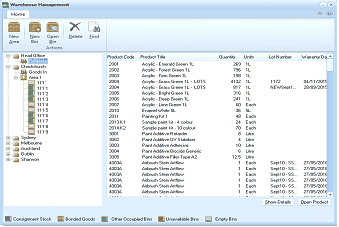
ABM "Warehouse Management" window. The toolbar shows Home tab with buttons for Filter, New Area, New Bin, Open, Delete, and Find under Actions. The left panel displays a tree structure of warehouse locations: Head Office (expanded) with sub-areas including Goods In, mixed Office (with numbered sub-bins like 1, 1.1.1, 1.1.2, etc.), and Melbourne. The main content area shows a grid with columns: Product Code, Product Title (e.g., "Acrylic - Emerald Green 1L," "Acrylic - Eisen Brown 1L LOTS," "Acrylic - Extra Green 1L LOTS"), Quantity, Units (showing "1L," "1L LOTS"), Lot Number, and Warranty Exp Da. Multiple products are listed with their quantities and lot information. At the bottom, a legend shows color-coded indicators: Consignment Stock, Bonded Goods, Other Occupied Bins, Unavailable Bins, and Empty Bins. "Show Details" and "Open Product" buttons are at the bottom right.
New Area: To create a new area select New Area and enter an appropriate description, such as Aisle 1. You can create further Sub Areas under each area. For example, you could set up your warehouse with an Aisle and Sub Areas as Shelves.
Bin: To add a new bin select an Area and select New Bin from the menu.
**Find: **To search for a product within any of the bins select "**Find" **and enter either the product code or description.