Product Transfer Within the Warehouse
Product Transfer Within the Warehouse
Transferring Individual Products from One Bin to Another
To transfer goods from one bin to another bin, or from the Goods In area, select that area you wish to transfer the goods from and select the required product. When you have selected the product, drag the product to the destination bin.
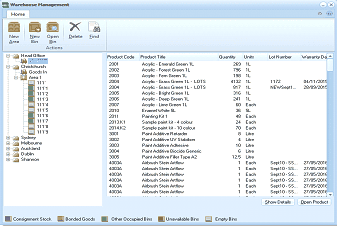
ABM "Warehouse Management" window showing a product transfer operation. The toolbar shows buttons for Filter, New Area, New Bin, Open, Delete, and Find. The left panel displays the warehouse tree structure with Head Office expanded, showing Goods In area and numbered bin locations (1, 1.1.1, 1.1.2, etc.), and Melbourne location. The main content grid shows columns: Product Code, Product Title (e.g., "Acrylic - Emerald Green 1L," "Acrylic - Eisen Brown 1L LOTS"), Quantity, Units, Lot Number, and Warranty Exp Da. A product row is highlighted (selected) indicating it is being dragged for transfer. At the bottom, color-coded indicators show Consignment Stock, Bonded Goods, Other Occupied Bins, Unavailable Bins, and Empty Bins. "Show Details" and "Open Product" buttons are visible.
If the quantity is greater than 1, then a screen will appear asking you to enter the quantity to transfer.

ABM "Transfer" dialog box for specifying the quantity to transfer between bins. The dialog shows "Number of Litres to move" with a numeric input field displaying "12.5000" with up/down spinner arrows. OK and Cancel buttons are at the bottom of the dialog.
Quantity transfer screen.
Transferring Multiple Products
You can transfer multiple products from one bin to another, or from Goods In Area to a bin, by selecting the required products and draging those products to a new bin. Note: The total quantity for each product will be transferred, as opposed to the situation whereby when you are transferring a single product you will be asked for the quantity to be transferred.
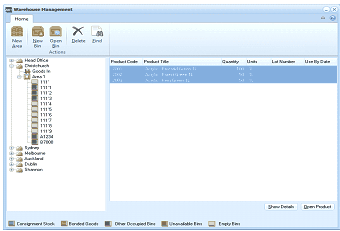
ABM "Warehouse Management" window showing multiple product selection for transfer. The toolbar shows buttons for Filter, New Area, New Bin, Open, Delete, and Find. The left panel displays the warehouse tree structure with Head Office expanded, showing Goods In area and various bin locations. The main content grid displays products with columns: Product Code, Product Title, Quantity, Units, Lot Number, and Use By Date. Multiple product rows are highlighted/selected (shown in blue), indicating multiple products have been selected for a bulk transfer operation. "Show Details" and "Open Product" buttons appear at the bottom right, along with the color-coded bin legend.