Enter Stocktake Data for Warehouse
Enter Stocktake Data for Warehouse
To enter Stock Take results: When the assigned user enters the stock take results, the product parameters selected appear automatically. If more than one batch has been assigned to that user, you can select a different batch from the drop-down list.
-
Select **Products **in the main screen.
-
In the Stock Transactions menu bar, select** Enter** Stock Take, and a screen appears as below:
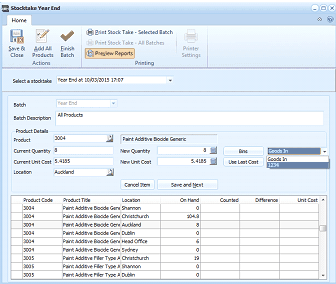
ABM "Stocktake Year End" window for entering stock take results. The toolbar shows buttons for Save & Close, Add All Products, and Finish Batch under Actions, plus Print Stock Take options (Selected Batch, Stock Take All Batches) and Printer Settings. A dropdown at the top shows "Select a stocktake" with "Year End at 10/03/2013 17:07" selected. Fields visible include: Batch (text field), Batch Description ("All Products"), Product Details showing product code "3004" with title "Paint Additive Biocide Generic." Entry fields show: Current Quantity, New Quantity (9), New Unit Cost (5.4185), a Bins dropdown showing "Goods In" option, and Use Last Cost checkbox. Location field shows "Auckland." Action buttons include Cancel Item, Save and Next. Below is a grid listing stock take results with columns: Product Code, Product Title, Location, On Hand, Counted, Difference, and Unit Cost. Multiple product entries are shown including various "Paint Additive Biocide Gen" items across different locations (Shannon, Christchurch, Auckland, Dublin, Head Office, Sydney).
Stock Take screen for entering results
- Printing: Select this option to print the stock take or set the printer properties.
- Add All Products: Allows you to add records for all products to the current location.
- Finish Batch: Marks the batch as complete.
- Save and Close: Saves the stock take and close the screen.
- Enter a new quantity and change the cost of a product if necessary. Select the appropriate Bin from the drop down list, or select the default bin, and select 'Save and Next'. This displays the quantity on hand, the quantity counted, and any difference.
- Bins: You can select the default bin from the drop down list on the right hand side of the screen.
- Allocating to Multiple Bins. If the product is located in different bins, you can select the Bins button on the right hand side, and this will allow you to select the appropriate bin or bins and enter the appropriate quantity for each bin.
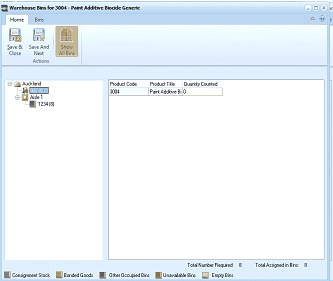
ABM "Warehouse Bins for 3004 - Paint Additive Biocide Generic" window. The toolbar shows Home tab and Bins tab with buttons for Save & Close, Save And Next, and Show All Bins under Actions. The left panel displays a tree structure of warehouse locations: Auckland (expanded) showing Goods In area and sub-bins (e.g., A1/04, 1234(8)). The main content grid shows columns: Product Code, Product Title, and Quantity Counted. One entry shows product code "3004" with "Paint Additive B(0)" title. At the bottom, summary fields show "Total Number Required: 0" and "Total Assigned in Bins: 0." Color-coded indicators at the bottom show: Consignment Stock, Bonded Goods, Other Occupied Bins, Unavailable Bins, and Empty Bins.
Note: If the total quantity entered for the bin or bins does not agree with the quantity counted you will be advised that the quantity does not match and asked if the Bin quantity is correct or the line quantity entered is correct.
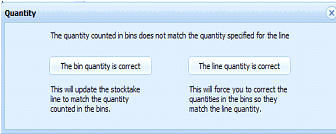
ABM "Quantity" dialog box displayed when bin quantities do not match. The message reads: "The quantity counted in bins does not match the quantity specified for the line." Two buttons are shown: "The bin quantity is correct" (with explanation: "This will update the stocktake line to match the quantity counted in the bins") and "The line quantity is correct" (with explanation: "This will force you to correct the quantities in the bins so they match the line quantity"). This dialog prompts the user to resolve discrepancies between bin-level counts and the overall line quantity.
- Adding a New Bin: If the Bin number has not yet been created, you can Add a new Bin by selecting the Bins button, and selecting the Bins tab, and then selecting New Bin. Note: if the Area containing the Bin has not been created yet then you will need to select New Area first, and add the Area before adding the Bin Number.
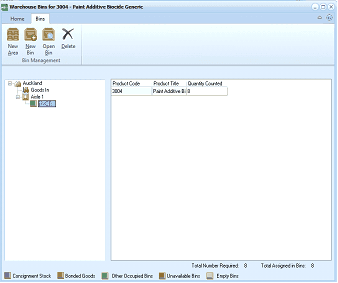
ABM "Warehouse Bins for 3004 - Paint Additive Biocide Generic" window showing the Bins management tab. The toolbar shows Home tab and Bins tab (selected) with buttons for New Area, New Bin, Open Bin, and Delete under Bin Management. The left panel displays a tree structure with Auckland (expanded) showing Goods In area and sub-bin "1/04(8)." The main content grid shows columns: Product Code, Product Title, and Quantity Counted, with one entry showing "3004" and "Paint Additive B(0)." At the bottom, summary fields show "Total Number Required: 0" and "Total Assigned in Bins: 0." Color-coded indicators are displayed: Consignment Stock, Bonded Goods, Other Occupied Bins, Unavailable Bins, and Empty Bins.
When you have finished entering the quantity for the bin or bins you can select either Save and Close to return to the main counting screen or Save and Next move to the bin selection for the next product.
ABM "Warehouse Bins for 3004 - Paint Additive Biocide Generic" window. The toolbar shows Home tab and Bins tab with buttons for Save & Close, Save And Next, and Show All Bins under Actions. The left panel displays a tree structure of warehouse locations: Auckland (expanded) showing Goods In area and sub-bins. The main content grid shows columns: Product Code, Product Title, and Quantity Counted, with product "3004" listed. Summary fields at the bottom show "Total Number Required" and "Total Assigned in Bins" counts. Color-coded indicators show: Consignment Stock, Bonded Goods, Other Occupied Bins, Unavailable Bins, and Empty Bins.
- Moving products within bins.
Whilst you are in the process of entering stocktake data, you can Drag and Drop products from one bin to another. Therefore, if you want to count the stock, but also move it to a different bin, then when in the Bins Screen, select "Show All Bins" firstly so that all bins are visible. When all bins are visible, select the product and the bin from where you wish to move it from, and drag it to the bin where it should be located. The existing bin will be displayed on the right hand side of the screen, and when you drag the product to the left hand side and select a bin, you will notice that the colour of the newly selected bin will change identifying the bin where the product will be relocated.
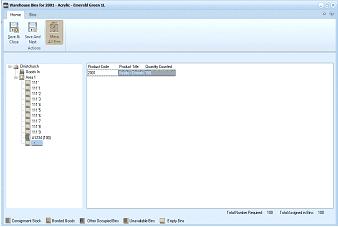
ABM "Warehouse Bins for 2003 - Acrylic - Emerald Green 1L" window showing a drag-and-drop bin transfer operation. The toolbar shows Home tab with buttons for Save & Close, Save And Next, and Show All Bins. The left panel displays a tree structure with Christchurch (expanded) showing Goods In area and multiple numbered bins (T.1.1 through T.1.5, and other locations). The main content grid shows columns: Product Code, Product Title, and Quantity Counted. A product entry "2003" with "Acrylic Emerald Gr(een)" is shown being moved between bins - the selected/highlighted bin in the tree indicates the target bin for the drag-and-drop transfer. At the bottom, summary fields show "Total Number Required: 100" and "Total Assigned in Bins: 100." Color-coded indicators are shown for Consignment Stock, Bonded Goods, Other Occupied Bins, Unavailable Bins, and Empty Bins.
- When you have entered the quantity counted for all the products you have counted select 'Save and Close' in the menu bar to finish the batch.