Purchasing Products into the Warehouse
Purchasing Products into the Warehouse
When you purchase products you can assign the product directly to a Bin or assign to the unallocated area Goods In.
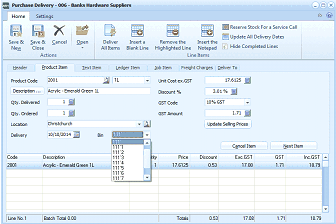
ABM "Purchase Delivery - 006 - Banks Hardware Suppliers" transaction screen. The toolbar shows buttons for Save, Save & Close, and Cancel, along with Settings, Reserve Stock For a Service Call, Update All Delivery Dates, and Hide Completed Lines. Tabs include Product Item, Text Item, Ledger Item, Job Item, Freight Charges, and Deliver To. Product entry fields include Product Code (showing "3001"), Description ("Acrylic - Emerald Green 1L"), Qty. Delivered, Unit Cost exc GST, Discount %, and GST Amount. A Bin dropdown is visible showing a list of bin locations (numbered bins like 1, 1.1, 1.1.1, 1.1.2, 1.1.3, 1.1.4, 1.1.5) for assigning the delivered product to a warehouse bin location. Below is the line items grid showing Code, Description (e.g., "Acrylic - Emerald Green 1L"), Qty, Price, Disc (discount), Exc GST, Tax, and Inc GST columns. The status bar shows "Line No. 1" and "Batch Total 0.00" with running totals.
Purchase delivery screen.
When you purchase product items and Bins have been set up for your warehouse, then an option will appear on the purchase transaction screen so that you can assign the product to the required bin. If you have not decided which bin it is to be placed into, at this stage you can select None, and the product will be assigned to the Goods In Area so that you can transfer it later.