Editing a Customer Account
Editing a Customer Account
From time to time it might be necessary to change the details on individual accounts, such as trading terms, address, or telephone number or simply view details of the customer account. To edit or view a Customer Account:
-
Select Customers in the Folders List (left of screen), which displays the customer list:
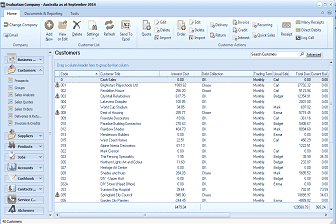 Image Description
The ABM main screen showing the Customers list. The left navigation panel displays folders including Customers (selected), Sales Analysis, Sales Quotes, Delivery & Returns, Suppliers, Products, and others. The main area shows a list of customer accounts with columns for Customer Code, Customer Name, Phone number, Trading Cust, Fax, and balance amounts. Multiple customers are listed including Brightstairs Playschools Ltd, Garden City Planters, Lakeview Complex, and others. The toolbar at top includes buttons for Email, Add, View, Quotes, Delete, Settings, Refresh, and Send To. A "Search Customers" bar with an Advanced option is visible.
Customer List
-
Double-click the customer whose details are to be edited/viewed and the customer details screen appears as below:
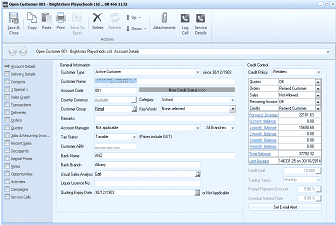 Image Description
The Open Customer 001 - Brightstairs Playschools Ltd account details screen. The left navigation lists sections including Account Details (selected), Selling Details, Addresses, Payment Details, Credit Control, Transaction History, Report Screen, Opportunities, Campaigns, and Service Calls. The toolbar shows Save & Close, Save & New, Copy, Paste, Print, Send To, and Attachments buttons. The main area shows General Information fields: Customer Type (Active Customer), Customer Code, Tax Status (Non-exempt), Country Currency, Customer Group (Retail), Account Manager (System Administrator), Tax Taxable checkbox (Prices include GST), Customer ABN, Bank and Branch fields, Usual Sales Analysis, Local Licences, Quantity Conv Due (01/12/1982). On the right side, Credit Control section shows Credit Policy (None - Manual Settings), Trading Terms, Quotes, Orders, Invoices, Credit Notes, Receipts, and Returns buttons. Fields for Account Balance, Oldest Transaction, Prompt Payment Discount (0.00%), and Set Email Alert button are visible.
Aston and Barrow Customer Account
-
Edit the details as required. To view each section in detail see Setting up Customer Accounts.
-
Select 'Save and Close' to update changes and close the window.
Note: When you open a customer account ABM Automatically Re-Calculates the Customer Balance and Ageing. Therefore, If you open a customer who has a lot of transactions, and the opening of such an account appears slow, then you can remove this option by selecting Tools\Options\Switches and Un-Select Re-calculate Each Time a Customer is Viewed.
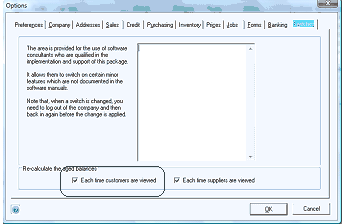
The Options dialog box showing the Preferences tab (selected) among multiple tabs: Preferences, Company, Addresses, Sales, Credit, Purchasing, Inventory, Pages, Jobs, Forms, and Banking. The main content area contains explanatory text about switches provided for software consultants to enable certain features not documented in the software manuals, with a note that when a switch is changed, the user needs to log out and log back in for the change to take effect. At the bottom is a "Re-calculate the aged balances" section with two checkboxes: "Each time customers are viewed" (checked) and "Each time suppliers are viewed" (checked). OK and Cancel buttons are at the bottom right.